

Architecture
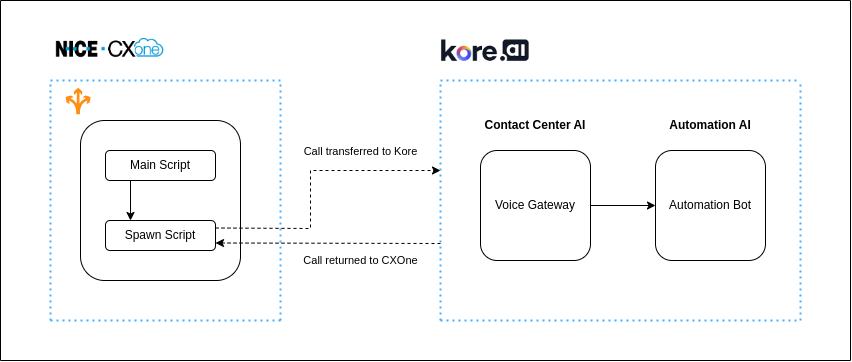
Reference Documentation
Shared Responsibilities
CXOne Channel Specifications
ACD configuration requires:- 1 skill (created and mapped)
- 1 Hours of Operation
- 1 Point of Contact (Phone)
- 1 Campaign
- 2 minimal functionality voice call scripts
Kore Bot Platform Requirements
Telephony Gateway
- DID or TFN phone number to receive calls.
- All SIP header information.
- Signal API configuration to return control to NICE CXOne.
SIP Trunk Configuration
CXOne Studio Configuration
- Download the SIP Main Script and SIP Spawn Script and save locally.
- Import the Studio Script:
- Log in to NICE CXOne Studio.
-
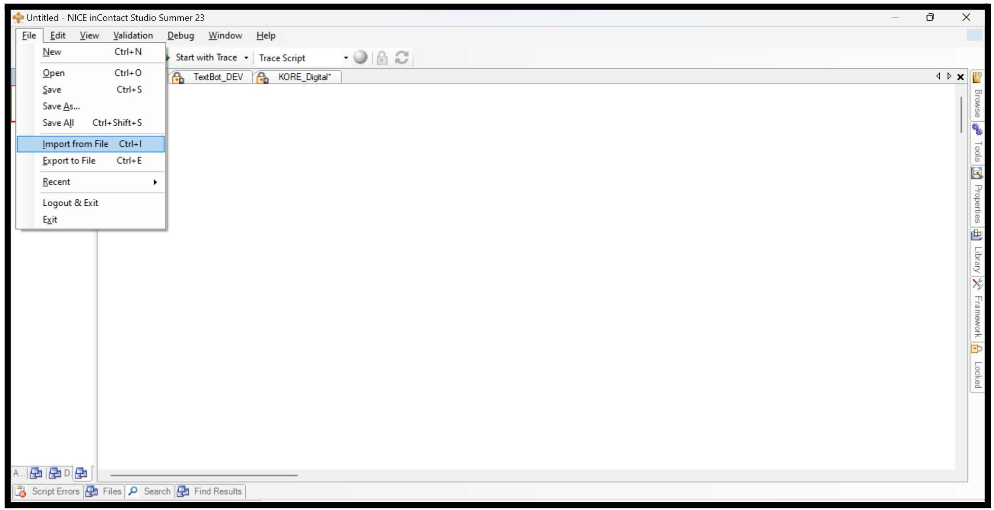
Go to File > Import from File.
-
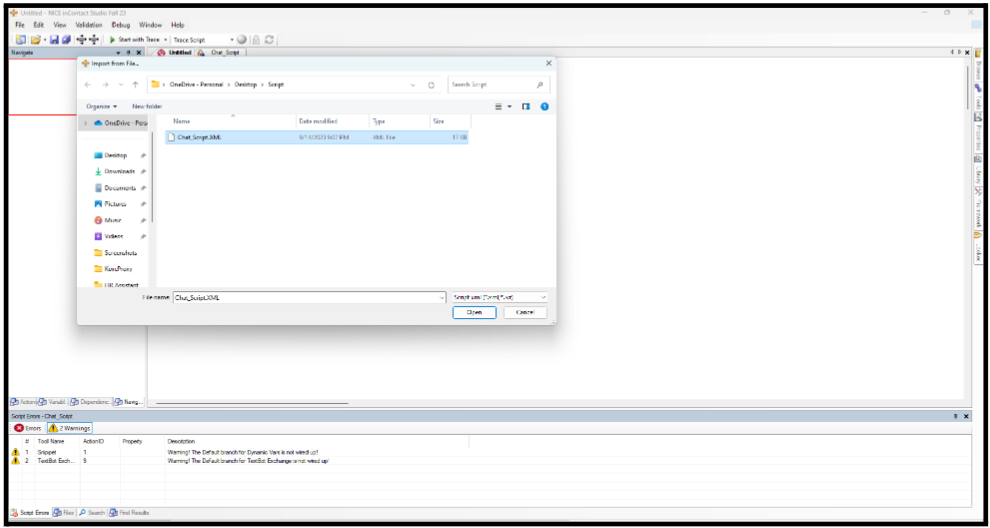
Open the saved studio script.
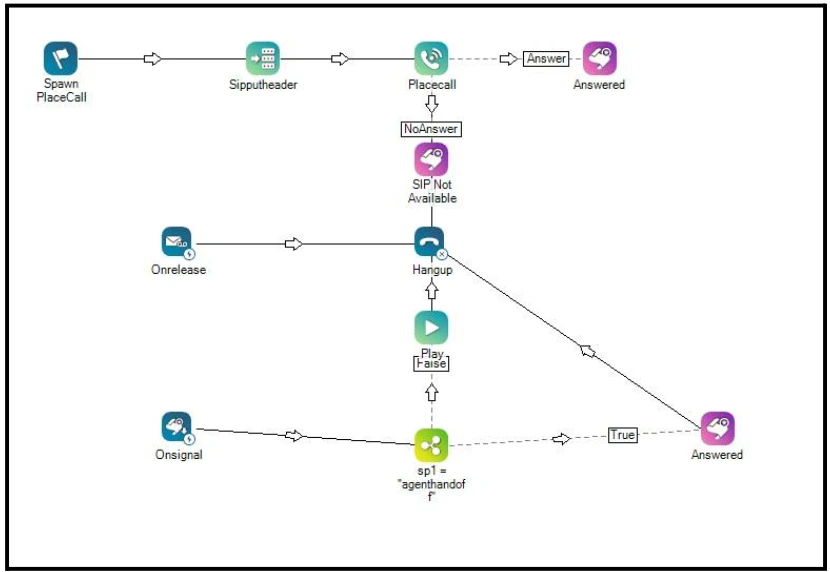
-
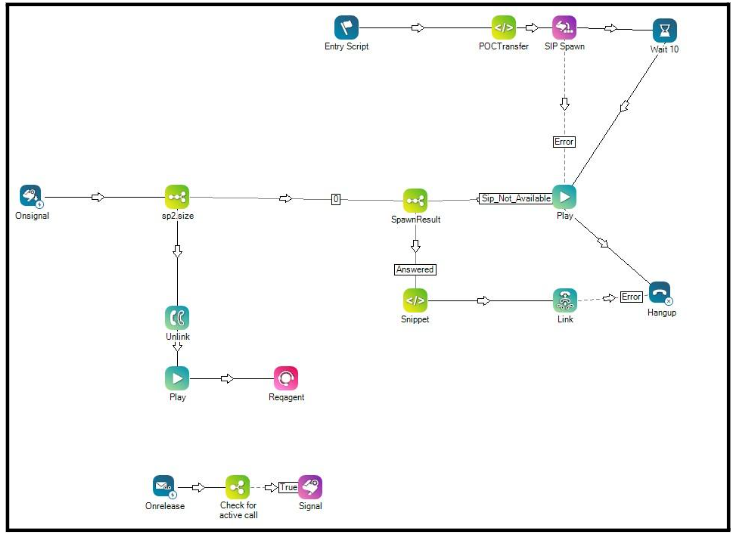
In the SIP Main Script, select the SIP Spawn Script in the Spawn action.
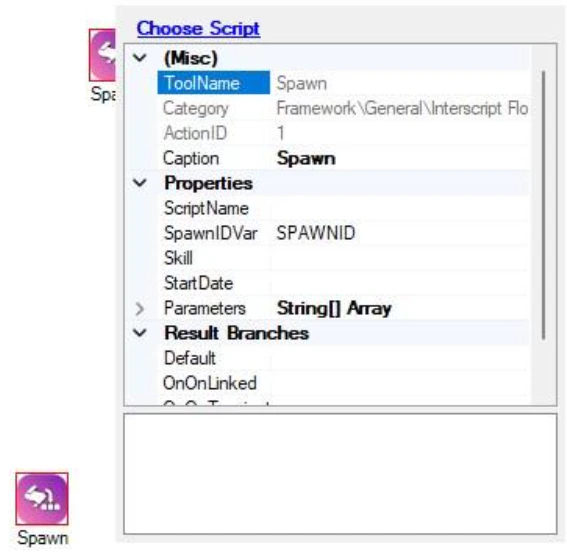
-
Add SIP headers in the Sipputheader actions:
- headerName: Key starting with
X-* - headerValue: The header value
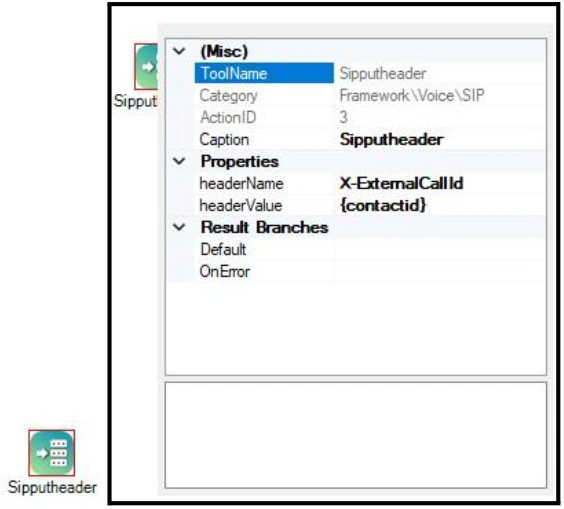
- headerName: Key starting with
-
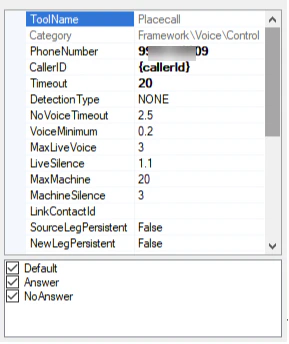
Add the SIP phone number in the Placecall action. Enter the SIP DID number configured in the AI for Service SIP Trunk.
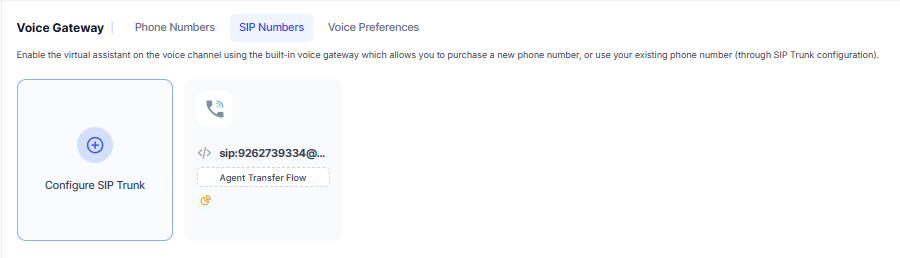
AI for Service Configuration
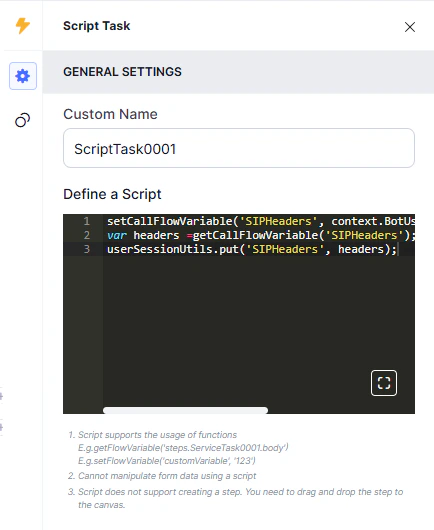
Configure a flow with an app on AI for Service. In the Script Task window, add the following code before the Run Automation action to pass SIP headers to the AI Agent: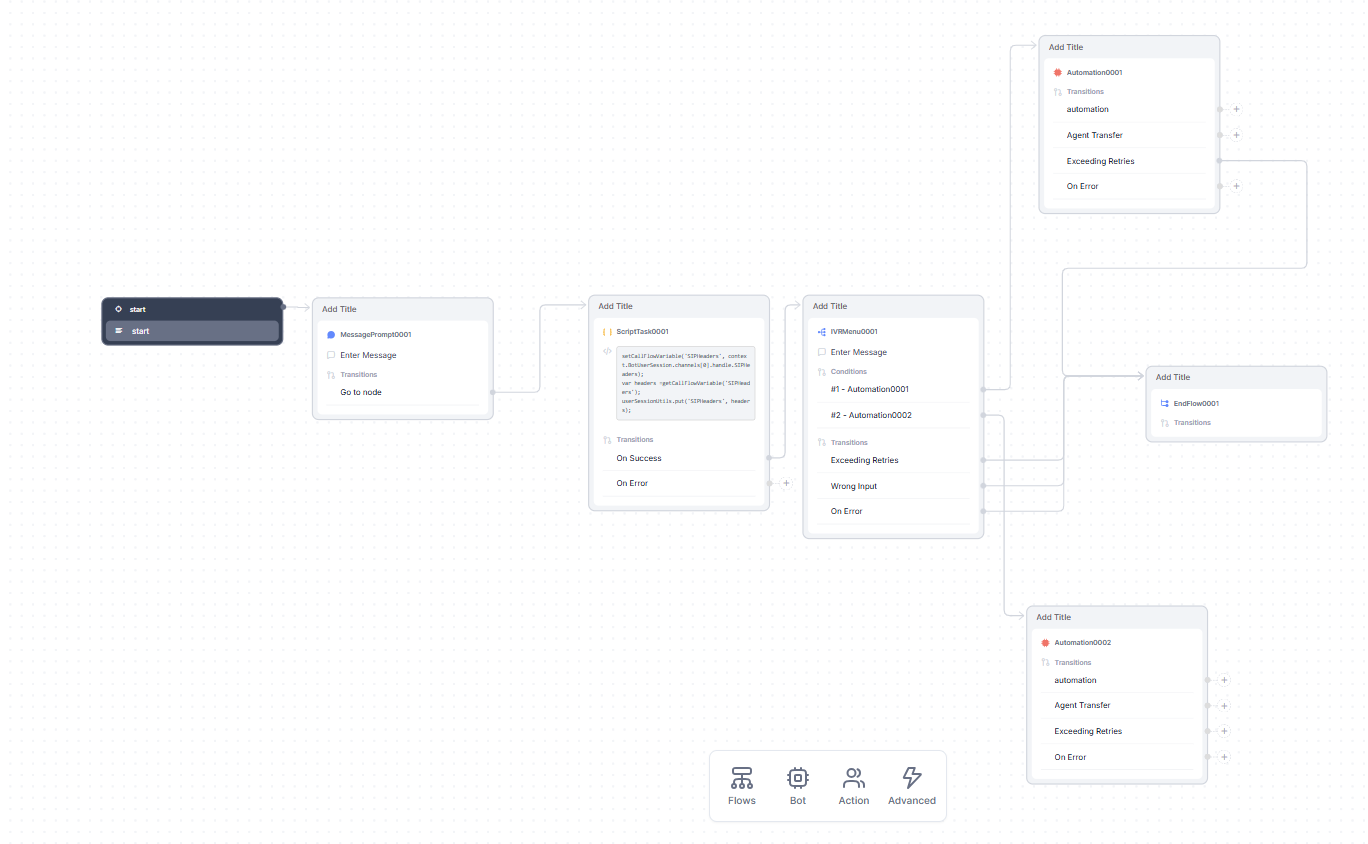
NICE CXOne Authentication
Required parameters:- Authentication API URL from NICE CXOne
- Access Key ID
- Access Key Secret
- Log in to the NICE Cluster.
-
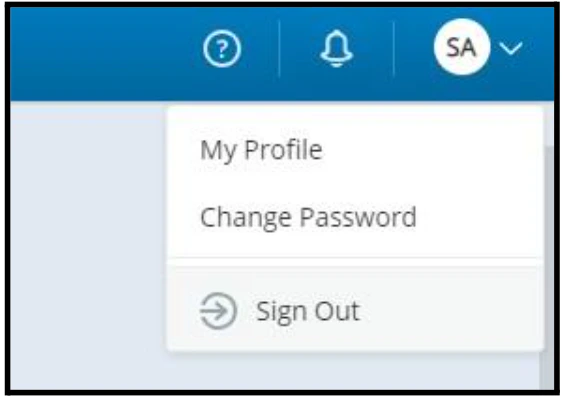
Click your profile (top right) and select My Profile.
-
Go to the ACCESS KEYS tab and click Add access key.
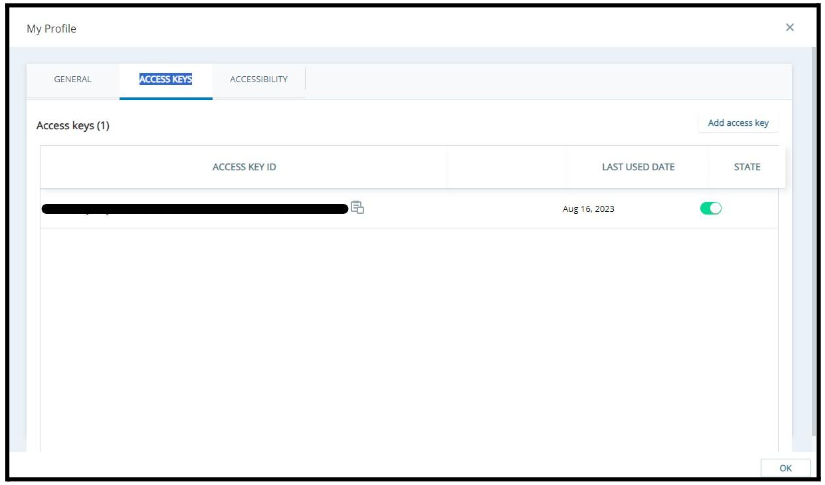
- Copy the Access Key ID and Access Key Secret.
-
Send a POST request to the authentication URL (adjust the base URL for your region, for example
na1.nice-incontact.com):Request body: -
The response returns an
access_tokenused to authenticate the Signal API.
Bot Configuration
Configure a dialog task to transition to NICE CXOne when the customer requests an agent transfer.Fetch the NICE Authentication Access Token
-
Add a bot action with a Service Node to get the
access_token.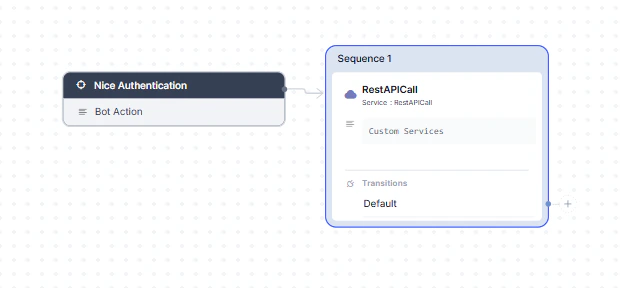
-
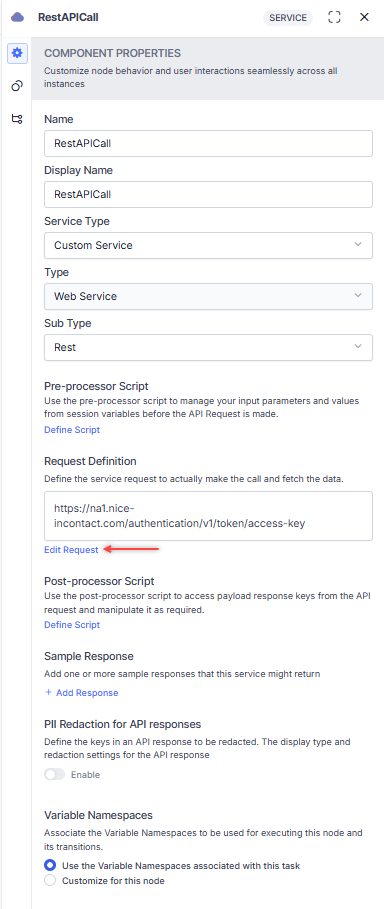
Set Service Type to Custom Service and Sub Type to REST.
-
Click Edit Request, select POST, and enter the authentication URL.

-
On the Headers tab, add
Content-Type: application/json.
-
On the Body tab, add the request body.

-
Click Test, then Save as Sample Response.

Fetch SIP Headers in the AI Agent
Use a Script Node in a bot action to extract headers: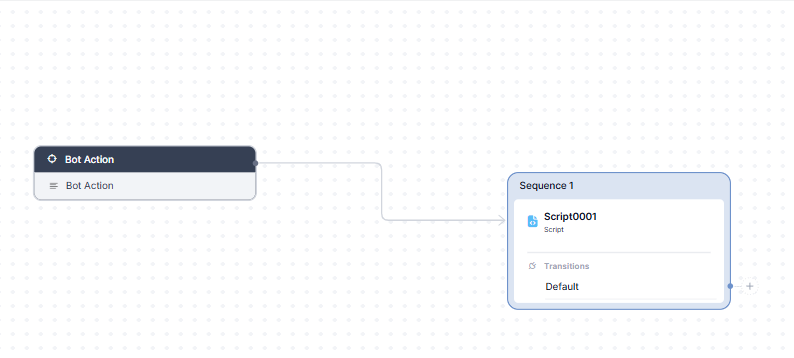
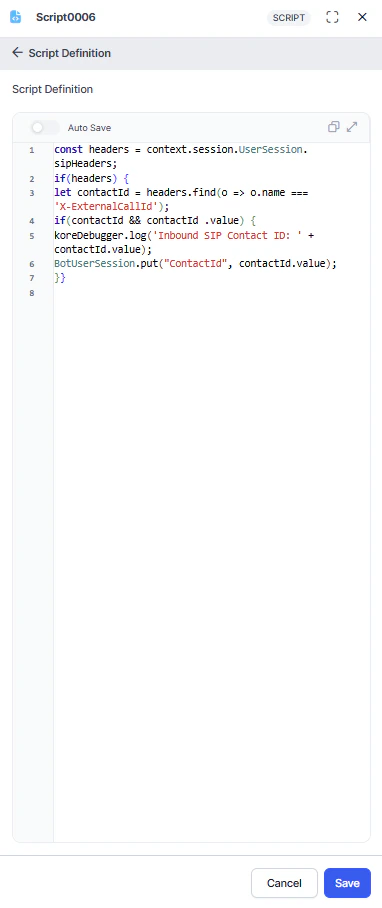
ContactId in BotUserSession to use when triggering the Signal API.
If the AI Agent triggers the Signal API to transfer to a live agent or end the conversation, the call must end from Kore, or the user must be disconnected from the Kore AI Agent and CCAI flow.
Trigger the Signal API
-
Add a bot action with a Service Node to trigger the Signal API.
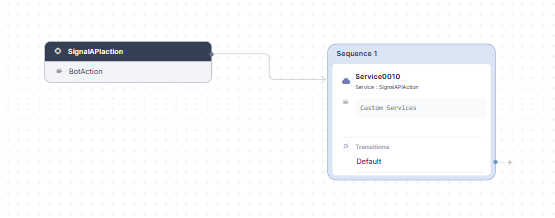
-
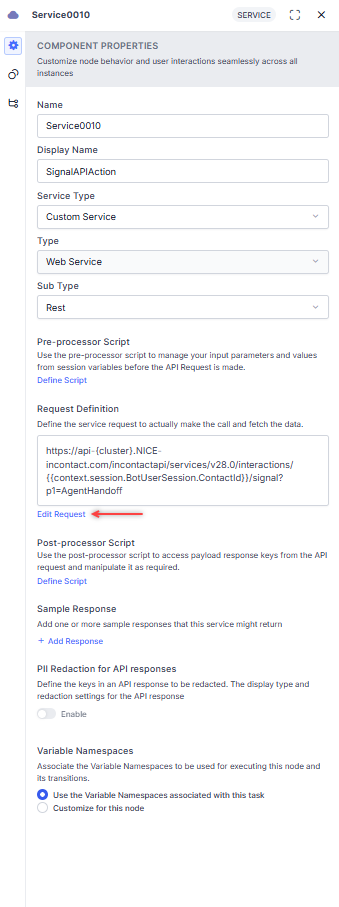
Set Service Type to Custom Service and Sub Type to REST.
-
Click Edit Request, select POST, and enter the Signal API URL (replace
{cluster}with your NICE cluster, for exampleapi-b32):ContactIdis extracted from SIP headers and stored inBotUserSession. Thep1=AgentHandoffparameter triggers the agent transfer.
-
On the Headers tab, add:
- Key:
Authorization - Value:
Bearer {{context.RestAPICall.response.body.access_token}}

- Key:
- Click Save.