

To use Slack Threads for your AI Agent deployed on the Slack Channel, add the Bot token Scope
chat:write.public to the existing Slack app under OAuth & Permissions > Scopes > Bot Token Scopes. Learn more- Slack account
- Must be a member of a Slack organization space
- Create an App on Slack.
- Set Redirect URL and Scopes.
- Install the App.
- Enable Interactivity.
- Enable Events.
- Enable Interactions from the Message Tab.
- Configure App Credentials.
- Manage Distribution.
- Enable the Channel on the Platform.
Step 1: Create an App on Slack
- In the Platform, select the assistant to which you want to add the Slack Channel.
- Navigate to Deploy > Channels > Slack > Configuration.
-
In a new browser tab, login to the Slack developer portal and navigate to the Your Apps section here. If this is your first app, click Create an App. If you already have some apps, then click Your Apps.

- Select From Scratch. This option lets you configure your app’s scopes and settings.
-
On the Create a Slack App window, enter the App Name and select a team from the Development Slack Team drop-down list. Use your assistant’s name as the App Name.
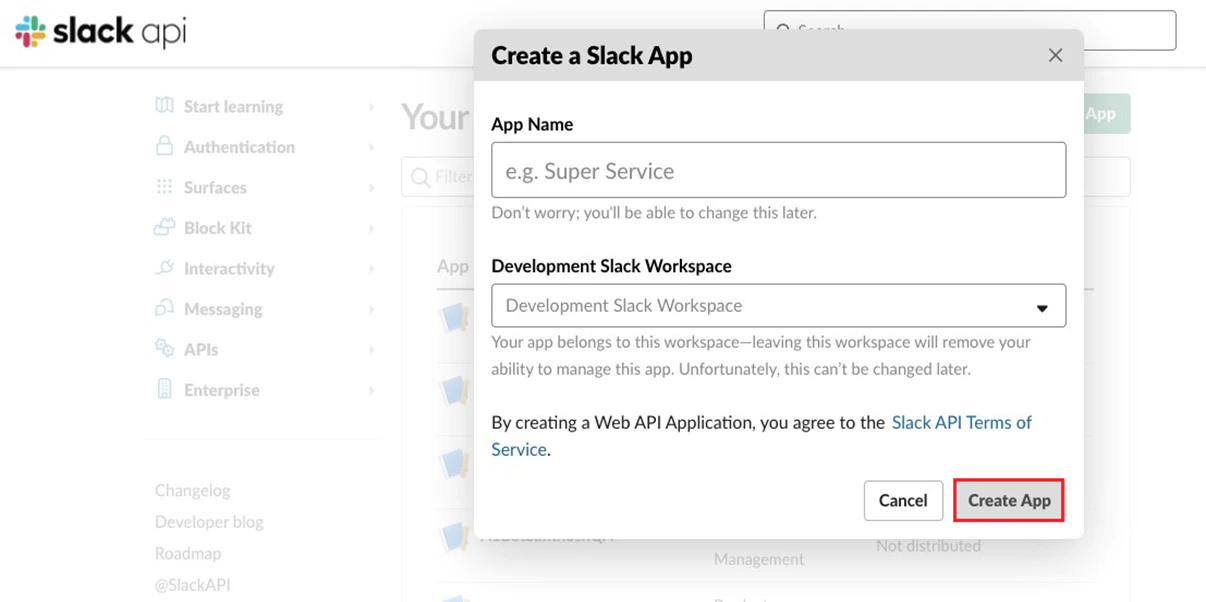
- Click Create App. This creates a new app and redirect you to the basic information section of the new app.
Step 2: Set Redirect URL and Scopes
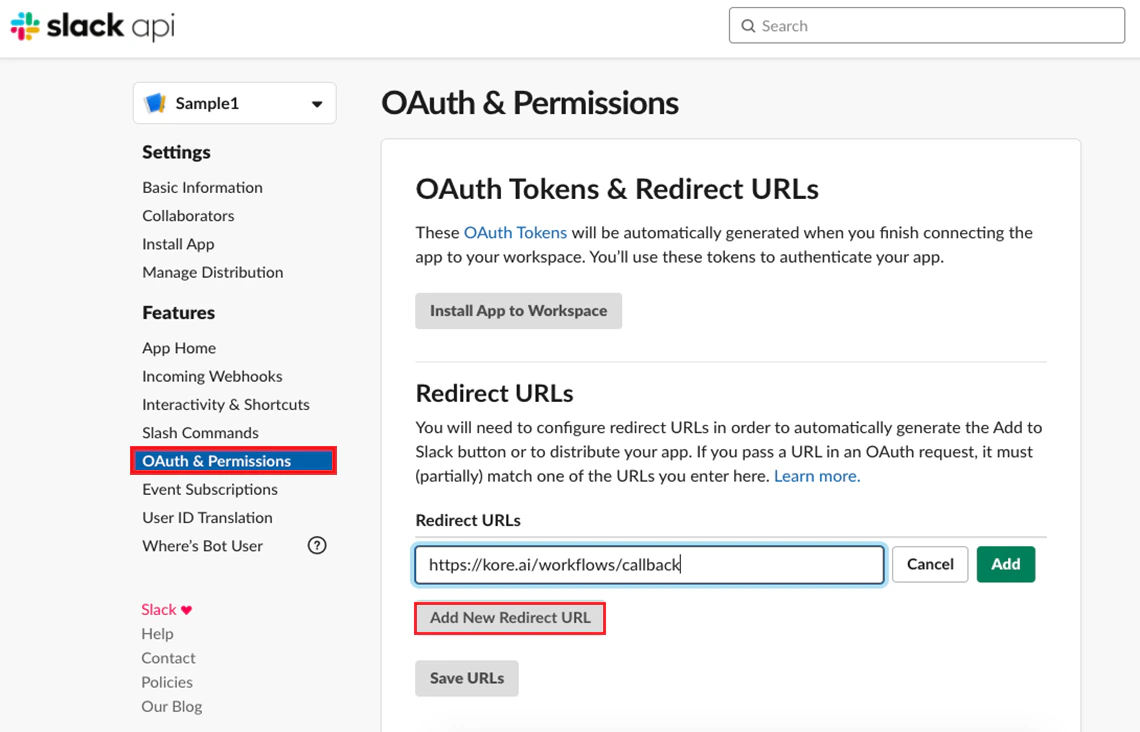
- Click OAuth & Permissions on the left menu and click Add New Redirect URL on the resulting page.
- On the Platform, copy the Redirect URL from the Configurations section and paste it in the Redirect URLs field of the OAuth Tokens & Redirect URLs page.
-
Click Add and Save URLs.
-
Navigates to Scopes > Bot Token Scopes section and add
incoming-webhook,chat:write, andchat:write.publicscopes. For users to send attachments to your app, select thefiles:writescope.
To send Proactive Notifications to users on Slack, select the
users:read, users:read.email, and team:read scopes.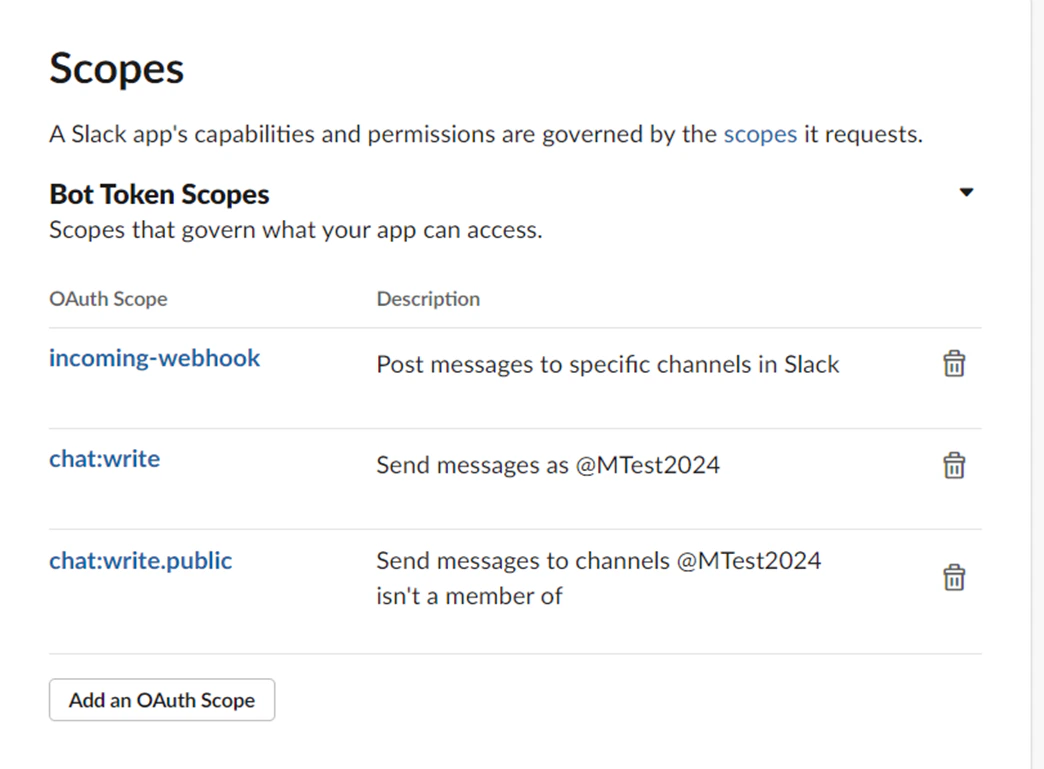
Step 3: Install the App
-
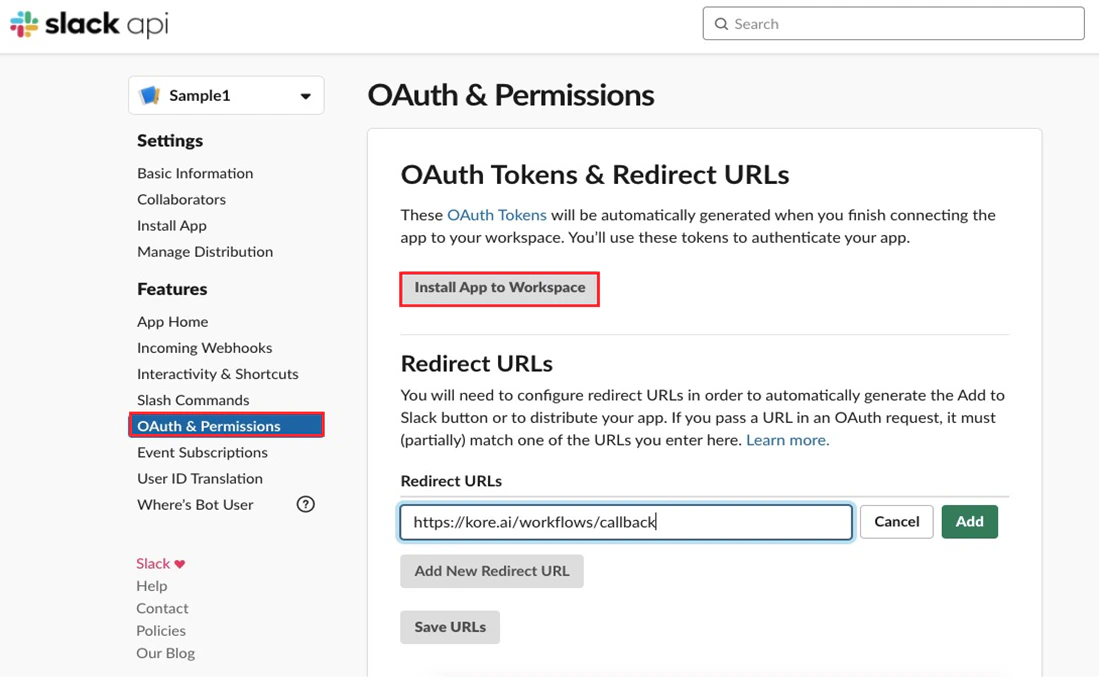
Navigate to OAuth & Permissions > OAuth Tokens & Redirect URLs > Install App to Workspace and choose the required Workspace and complete the process.
-
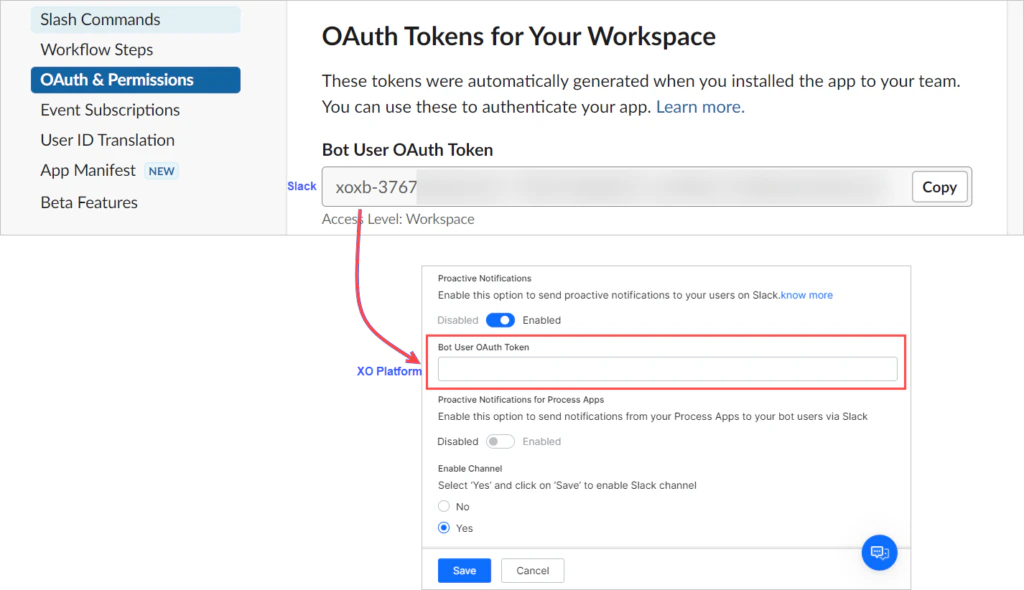
(Optional) To send Proactive Notifications to your users on the Slack, copy the Bot User OAuth Token from the OAuth Tokens for Your Team section and enter it in the Slack Channel Configurations section on the Platform.
Step 4: Enable Interactivity
- Navigate to Interactivity & Shortcuts and enable Interactivity.
- On the Platform, copy the Webhook URL from the Slack channel’s Configurations tab and enter it in the Request URL field on Slack. Click Save Changes.
The Webhook URL includes the
streamid in the API request to identify the AI Agent. When an incoming request qualifies with the identifier, it helps with traceability, troubleshooting, and remediation at the network level during anomalies such as malicious calls or unusual app activity.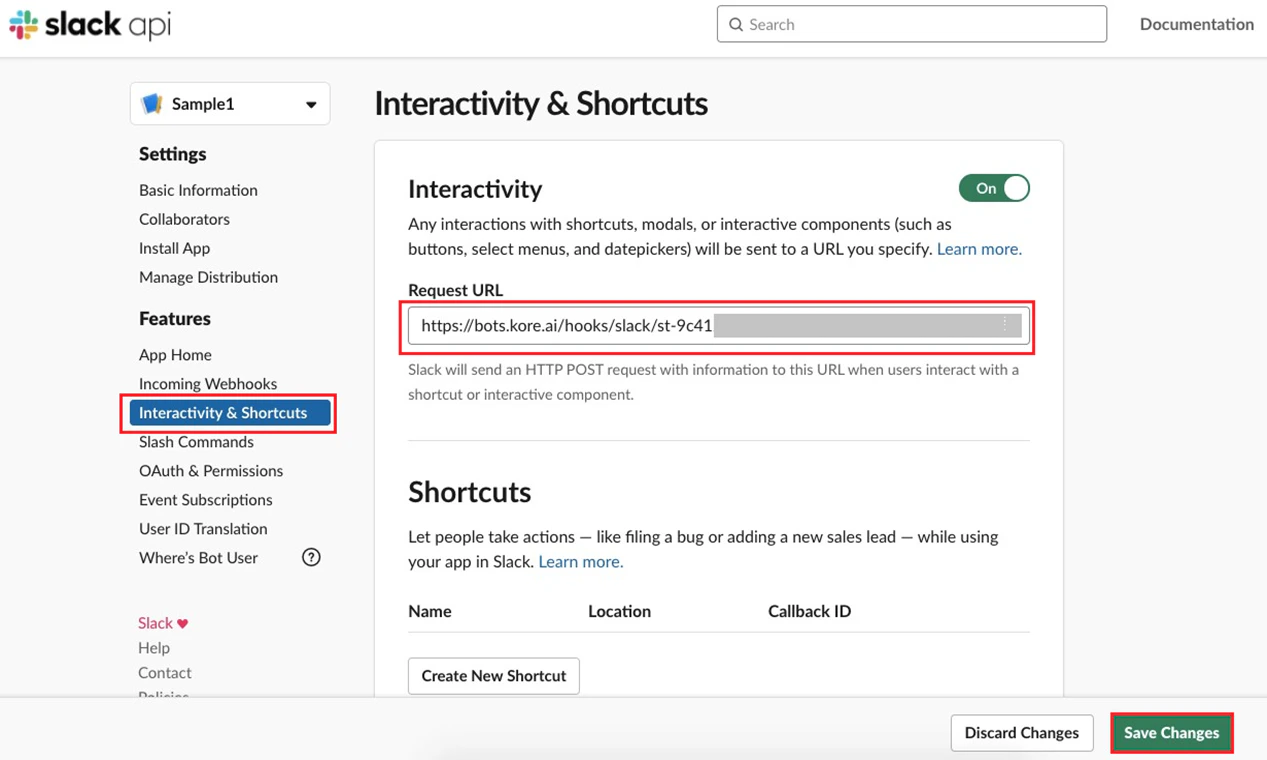
Step 5: Enable Events
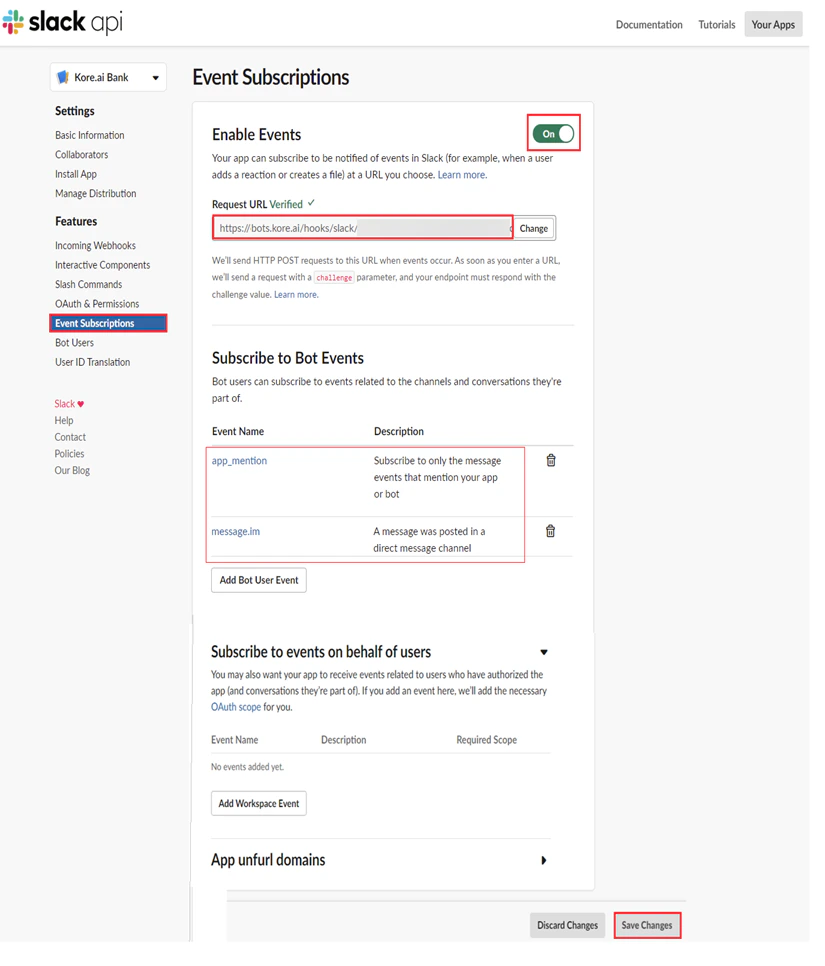
- Navigate to Event Subscriptions and activate the Enable Events option.
- On the Platform, copy the Webhook URL from the Slack channel’s Configurations section and paste it in the Request URL field in the Enable Subscriptions section.
- In the Subscribe to Bot Events section, add the following events and Click Save Changes.
app_mentionmessage.imApp_installedApp_home_opened
Step 6: Enable Interactions from the Messages tab
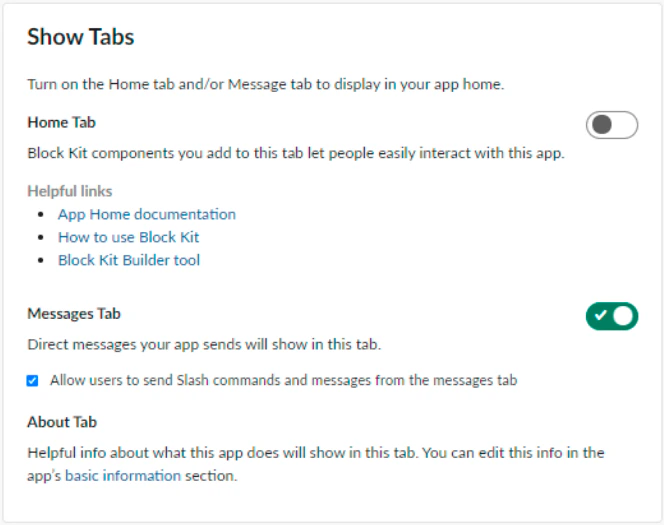
- Navigate to App Home > Show tabs and enable the Messages Tab.
- Check the Allow users to send Slash commands and messages from the messages tab. This lets users to directly interact with the app from the Messages section.
The Slack channel supports an optional welcome experience that introduces users to the AI Agent after installation and during their first interaction on app home. When enabled, the Platform sends a welcome message to the installer and displays onboarding content in the Slack app home, including setup guidance, bot capabilities, and help information.
Step 7: Configure App Credentials
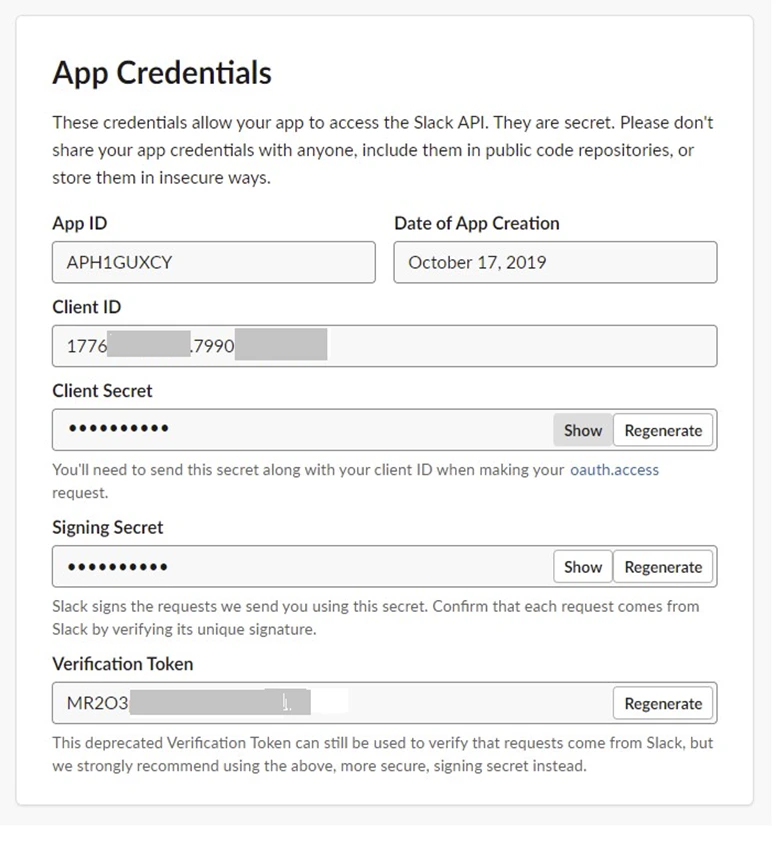
- Navigate to Basic Information and scroll down to the App Credentials section.
- Copy the values for Client ID, Client Secret, and Verification Token fields and paste them in the Configurations section of the Slack Channel on the Platform.
Step 8: Manage Distribution
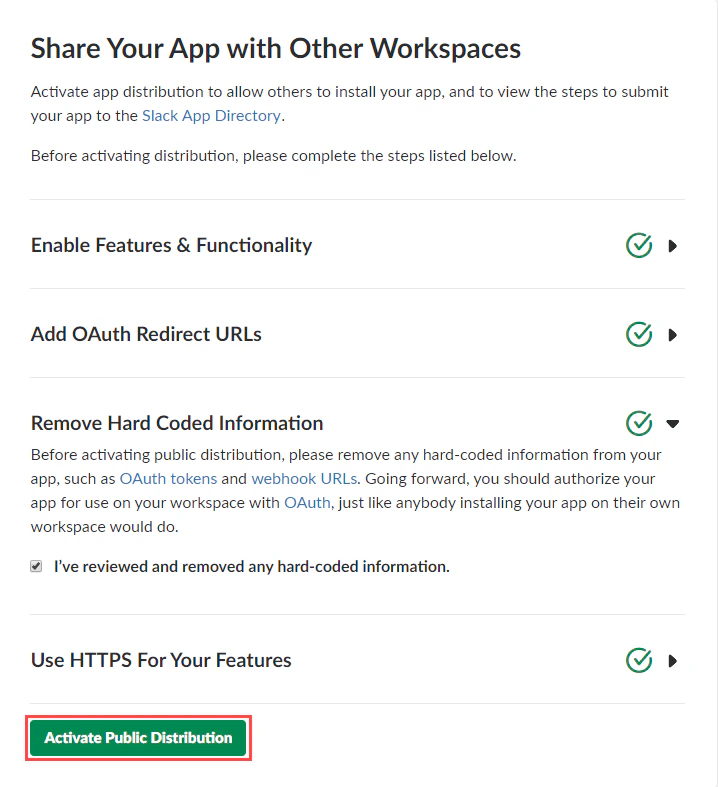
- Navigate to Manage Distribution and click Remove Hard Coded Information.
- Select I’ve reviewed and removed any hard-coded information and click Activate Public Distribution.
Step 9: Enable the Channel
- Navigate to Channels > Slack > Configurations.
-
Copy the following information and use it to define the app properties on Slack:
App NameRedirect URLWebhook URL
-
Copy and paste the following information from the Slack app and Click Authorize.
Client IDClient SecretVerification Token
-
In the Customize Slack Channel’s Conversations section, select one of the following options to define the conversation behavior of the AI Agent.
- Continue the conversation with the AI Agent in the channel (This is the default selection. It maintains the current behavior for DM and group messages. However, if a user intentionally starts a thread with the AI Agent, the conversation will continue within that thread).
- Create a new thread for every user message(@mentioned to the AI Agent) in the channel (For every user message in the channel such as DM and Channel conversations)
- Creates a new thread and replies to the user message in the thread.
- Treats each conversation thread as a separate session whenever it’s created in the channel, maintaining context isolation.
- Treats each conversation thread as a new user conversation whenever it’s created for Slack DM.
All the consecutive interactions between the user and the AI Agent happen in the same thread irrespective of the option you select. The existing apps default to the first option, ensuring zero disruptions to current deployments.
- Enable the Proactive Notifications toggle button. This step is optional. This option lets you to send proactive notifications from your process apps to your AI Agent users via Slack. Please refer to Step 3. when enabled, select the required process apps from the list for your AI Agent, and click Authorize.
- For a welcome experience, enable this option to automatically send a welcome message. This option is disabled by default to maintain backward compatibility with existing deployments.
- Under Enable Channel, select Yes and click Save to enable the Slack channel.
When the Slack channel is added successfully, it’s optional to submit your app to the Slack app directory. When the channel is enabled and all configurations are verified, you can optionally publish the app to make it available for end-users, with the new channel. Publishing your App.
Slack Workspace and Enterprise Grid IDs in the Context Object
For Slack conversations, the Platform adds the following fields to the channel handle in the session context. Use them in dialogs and services to identify the Slack workspace or Enterprise Grid organization that a conversation comes from. The Platform takes the values from the Slack payload.-
team_id– Slack workspace (team) ID. -
enterprise_id– Slack Enterprise Grid organization ID. Available only when Slack provides it.
If Slack does not provide an enterprise ID, the Platform does not add the
enterprise_id field, and processing continues without error.