

- Scorecard and evaluation scores
- Metric adherence and failure percentage
- Coaching assignments
- Attribute-level performance analysis
- Queue, language, agent, and agent group filtering
- CSV export and scheduled delivery
The report includes only evaluated interactions and agents mapped to the selected scorecards. Aggregated metrics exclude interactions below the configured duration threshold unless they were manually evaluated.
Generate the Report
- Create the Report Follow the standard report creation process described in see Scheduled Reports.
-
Select Agent Performance Report from the Report Type list.
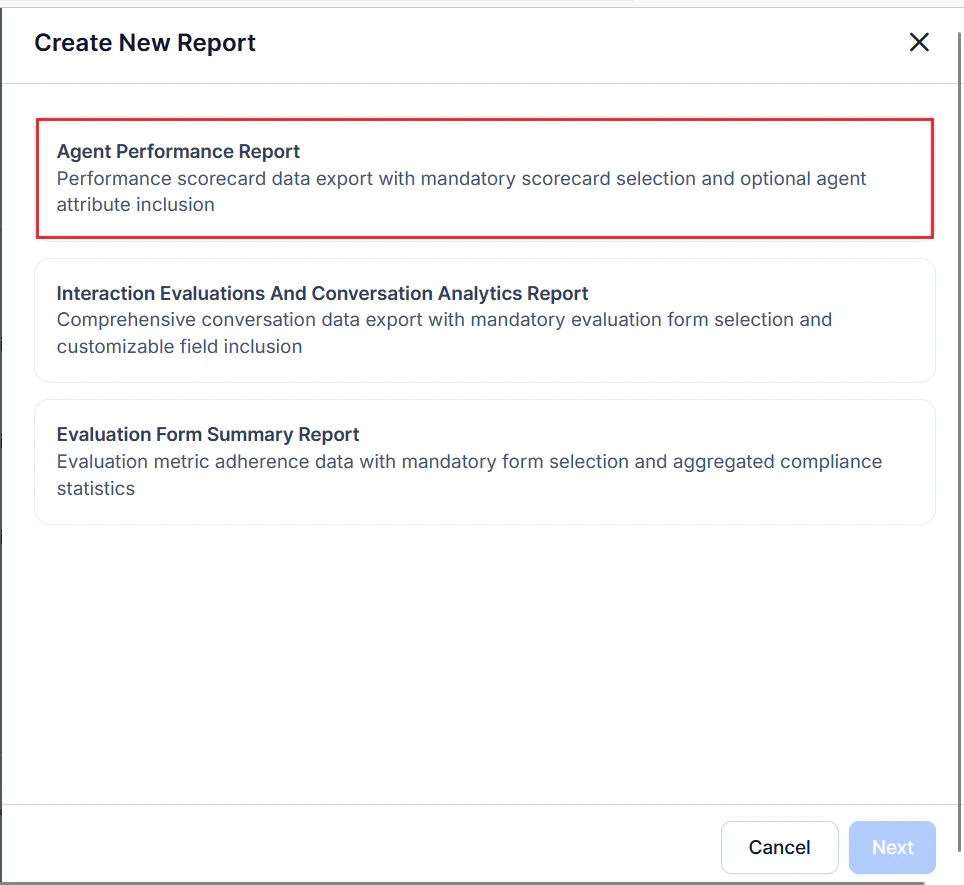
- Select one or more Agent Scorecards. At least one scorecard is required.
- Select the Date Range and Timezone.
- Complete the Configuration — Filters section.
- Select + Add Filter to add one or more filter rows.
- Select a Filter Type, such as: Channel (Voice or Chat), Contact Direction (Inbound or Outbound), Queue, Language, Agents, Agent Groups.
- Select the appropriate values for each selected filter.
-
Select Optional Fields to include additional supported columns (interaction attributes) in the generated CSV.
- Available optional fields depend on the selected scorecard.
- Selected fields are appended as additional columns in the exported CSV.
- Enter one or more email addresses in the Send Email to field to send the automated reports. At least one email address is required.
- Select Next.
- Complete the Schedule section to generate the report using the current configuration.
Report Fields
Generated CSV Fields
The report exports agent-level performance details, evaluation summary metrics, scorecard results, coaching information, and attribute-level evaluation performance. Each row represents a single agent and includes overall scores along with attribute- and metric-level results.Example Metrics
The following are examples of dynamically generated metric fields: Attribute and metric fields are generated dynamically based on the configured scorecard. Each attribute includes an overall attribute score followed by the individual metric results associated with that attribute.