

Accessing Conversation Logs
- Sign in to AI for Service.
-
Go to Agent AI > Analytics > Agent AI Logs. The default view shows today’s conversation records.
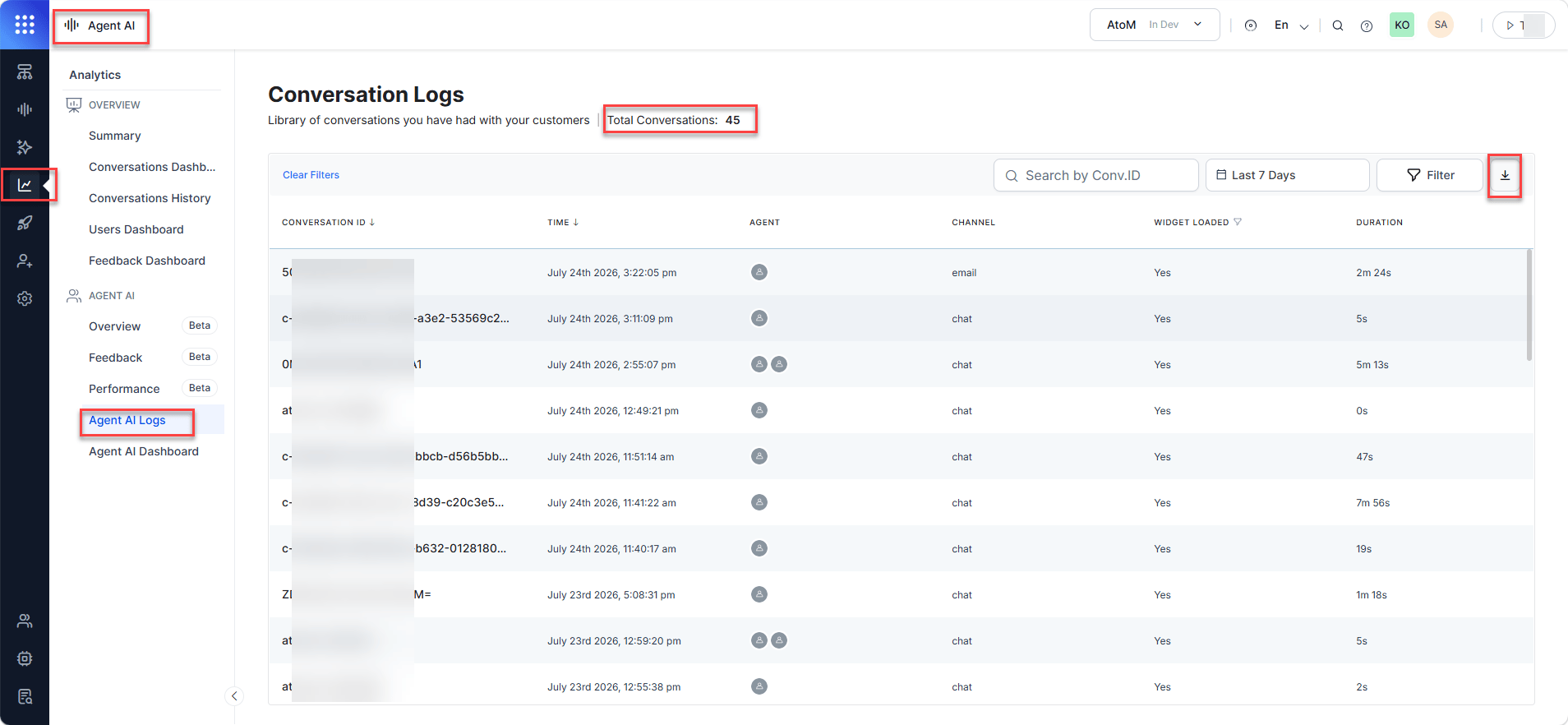
- Select the arrow next to Conversation ID or Time to sort the table in ascending or descending order.
- Select the Widget Loaded filter, and then select Yes or No to filter data by widget load status.
- Select the Calendar to filter for a preset interval or a custom range. The total conversation count for the selected range updates next to the Conversation Logs heading.
- Select a Conversation ID to view the Conversation Log page.
- Select the Download icon to download the conversation data in JSON format.
Conversation Logs Fields
Only agents who participate in at least one conversation appear in the filter.
Conversation log
The Conversation Log page shows the Transcript, Feedback, Identifiers, and Insights tabs. You can view the conversation summary, edited summary (if any), transcripts, AI suggestions, feedback, identifiers, voice call recording, overall widget feedback, and the conversation record.Transcript
The Transcript section displays the following:-
AI Suggestions toggle — Shows or hides AI-generated suggestions in the conversation log.
AI suggestions display only if you select the Agentic Copilot toggle in Agent AI > Configurations > Widget Settings > Agent AI Channel Specific Settings.
-
Translate dropdown list — Available languages for conversation translation. After you select a language, the Original button displays. Selecting Original shows transcripts in both the original and translated languages.
The Translate list displays only the languages you set at the app level.
- AI-generated conversation summary — If an agent edits the summary, an eye icon marks the edited version. Select the eye icon to view the original and edited versions side by side.
- Transcripts of customer-agent conversations and AI suggestions — Each AI suggestion shows the copy, sent, thumbs up, or thumbs down icon based on the action the agent takes on it. The negative feedback reason is also visible on hovering over the feedback icon.
- Copilot events — The transcript displays Copilot Paused and Copilot Terminated events to indicate why NBA suggestions stopped during the conversation.
- An error message and the agent-entered summary, if summary generation fails.
- Recorded voice calls — Displays voice call recordings for the voice channel. You can play, pause, rewind, fast-forward, and download each recording.
Feedback
The Feedback section displays only if agents have submitted feedback on the widget’s performance. It shows the agent name, feedback reason, additional comments, and feedback on suggestions.- Overall Agent AI Widget Feedback: Displays the agent’s overall feedback on widget performance, including the agent name or ID, feedback reason, and additional comments. For agent transfers, the section displays a separate row for each agent.
- Suggestions Feedback: Displays the agent’s feedback on AI suggestions, including the suggestion, source, agent feedback, and suggestion reason.
- Summary Feedback: Displays the agent’s feedback on mid-conversation summary, landing summary, agent transfer summary, and closing summary along with the feedback type, feedback reason, and agent name.
Identifiers
The Identifiers section shows unique conversation identifiers, call details (voice channel only), and linked app session IDs. You can copy identifiers and view the overall sentiment of the conversation. Conversation Identifiers
Call details (voice channel only)
Linked app sessions
- To display Overall Sentiment, turn on the Agent Coaching feature.
- If Agentic Copilot is on, both Session ID and User ID display as N/A.
- The Call Details subsection appears only for the voice channel.
Insights
The Insights tab displays the following: Agent initiated search Displays a table of search queries the agent submitted during the conversation.Filter Conversation Logs
This feature lets you locate conversations using filters. By default, the calendar shows only today’s logs. You can also search for a specific conversation by entering its Conversation ID. You can create and save custom filters by channel type and agent name, set a filter as the default, and edit or delete saved filters. To filter conversation logs:- Select the Calendar button in the upper-right corner.
- Select a Date Range or Time Range.
- Select Apply.
Search by Conversation ID
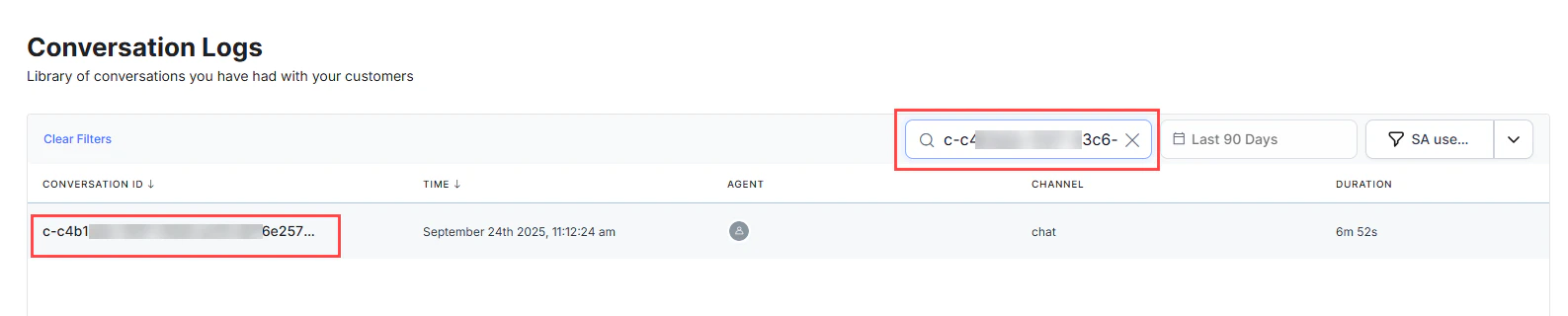
Each conversation has a unique Conversation ID. Use it to find a specific conversation without scrolling or filtering.- Go to Conversation Logs.
- Locate the Search by Conversation ID search box in the upper-right corner.
- Enter the Conversation ID.
-
Press Enter.
Create a New Filter
You can create and save a custom filter based on channel type and agent name. Unsaved filters appear as a draft named Unsaved Filter.- Go to Conversation Logs.
- Select Filters in the upper-right corner.
- In the New Filter page:
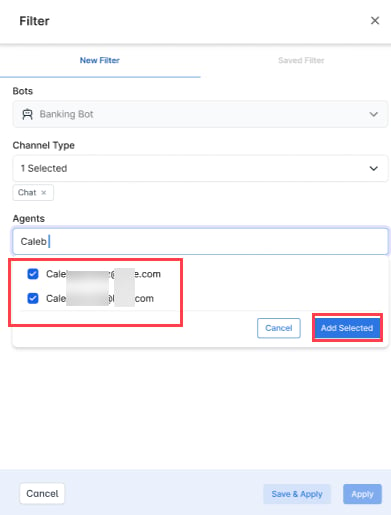
- Select a Channel Type: Chat, Voice, or Email.
-
Enter the first few letters of an agent’s email address, then select it from the autocomplete suggestions. To select multiple addresses, select Add Selected.
-
Select Save & Apply.
- If you select Apply instead, the filter saves as a draft named Unsaved Filter.
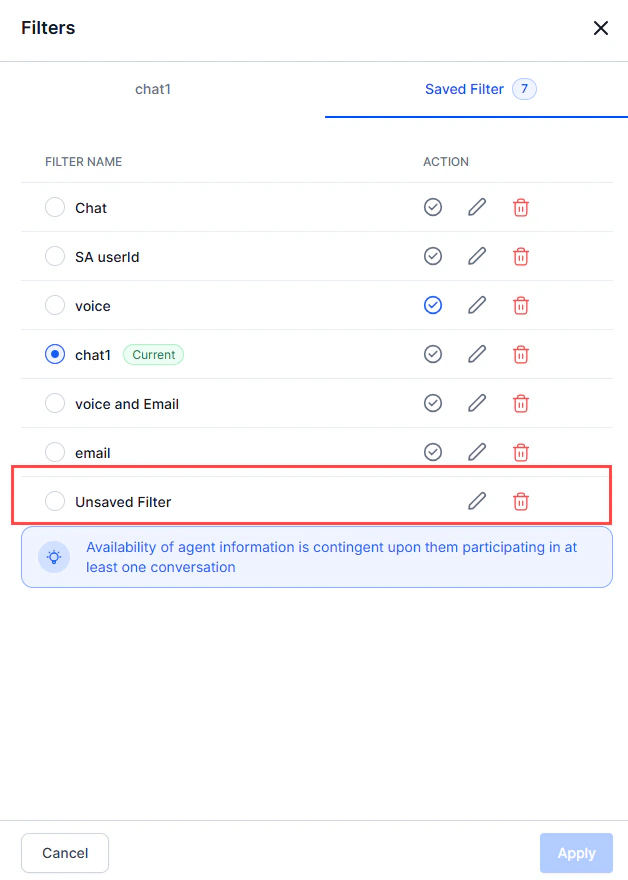
- Enter a name and select Save.
Edit, Delete, or Set as Default
- Go to Conversation Logs.
-
Select the Filters list.
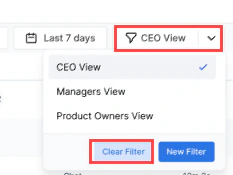
- Select Clear Filter to remove the current filter and display the full conversation log.
-
Select Filters > Saved Filter, then choose a filter.
- Select Mark as default to set it as the default filter.
- Select Edit to modify the channel types and agents.
- Select Delete to remove the filter.
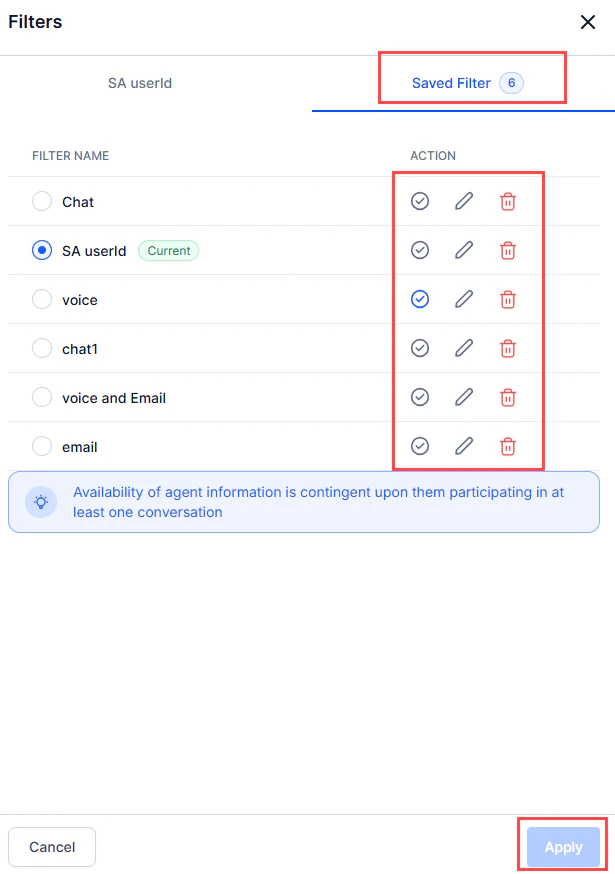
- Select Apply.
Export Conversation Log
The Export feature lets you download the conversation data for selected conversations in JSON format. The export includes the following data:- Agent and user messages
- Agent AI suggestions
- Actions the agent performed on AI suggestions, such as copy or send
- Feedback on AI suggestions
- Go to Agent AI > Analytics > Agent AI Logs.
- Filter data based on Date or Time range.
- Select Export.
The export honors the filters applied in the Conversation Logs page.