

Prerequisites
Administrators with access to a Five9 Admin Console and with privileges to set up the following configurations:- Five9 Chat enabled for your instance. Contact your Five9 representative.
- Platform administrators with access to Kore.ai Agent AI instance and familiarity with creating and configuring a Kore AI Agent.
- Kore App credentials such as Account ID. Read this doc for a walkthrough.
Definitions
Configurations on Kore Agent AI
Configurations on the Five9 Admin Console
Capture Agent AI Bot Mapping for Skills or Campaigns
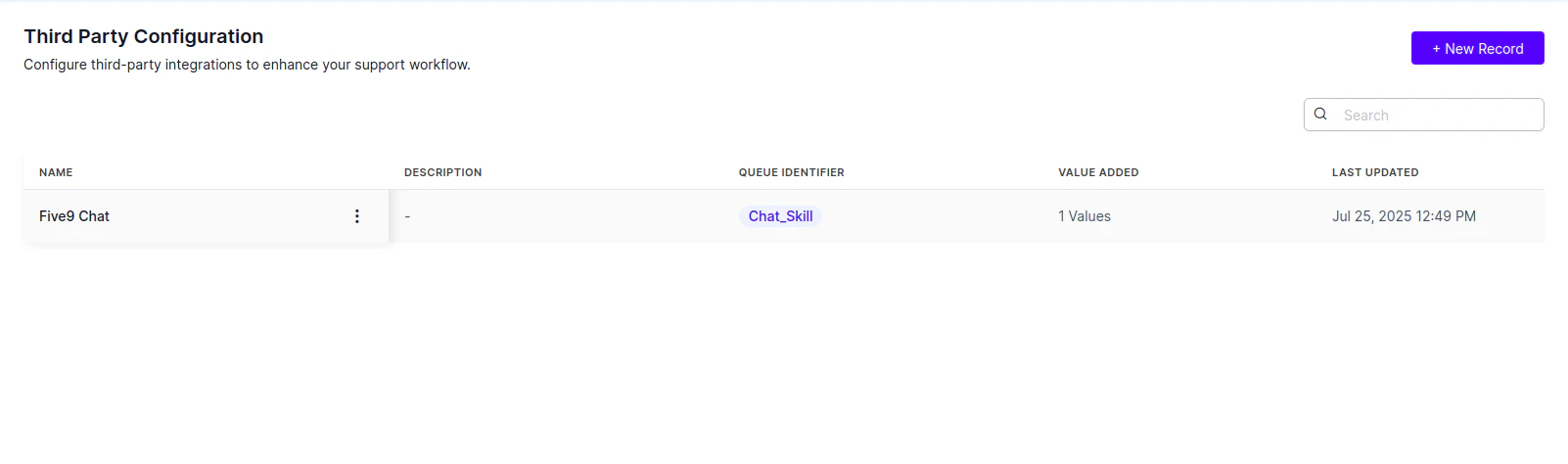
Third-Party Configuration maps Agent AI bots to specific skills or campaigns. Within this configuration, you can define the bot’s language, custom data, or secure custom data. For example, if you want Agent AI Bot1 to associate with Skill1 and Agent AI Bot2 with Skill2, you must:- Create a record in Third-Party Configuration for Agent AI Bot1, setting the Queue Identifier to Skill1.
- Create a record in Third-Party Configuration for Agent AI Bot2, setting the Queue Identifier to Skill2.
- The system doesn’t support Custom Data and Secure for the Five9 Chat integration.
- You can’t map a Skill or a Campaign to multiple Agent AI bots.
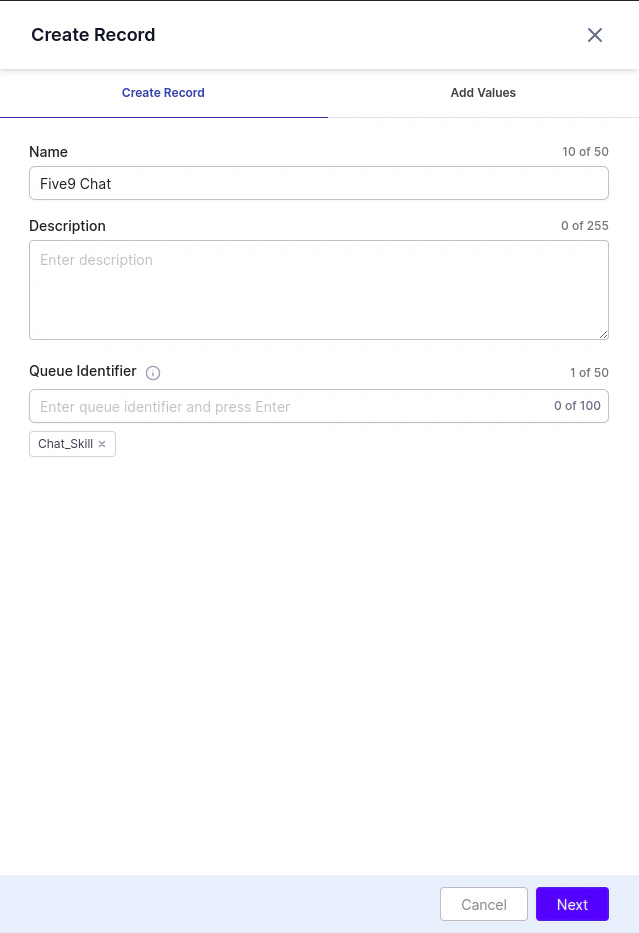
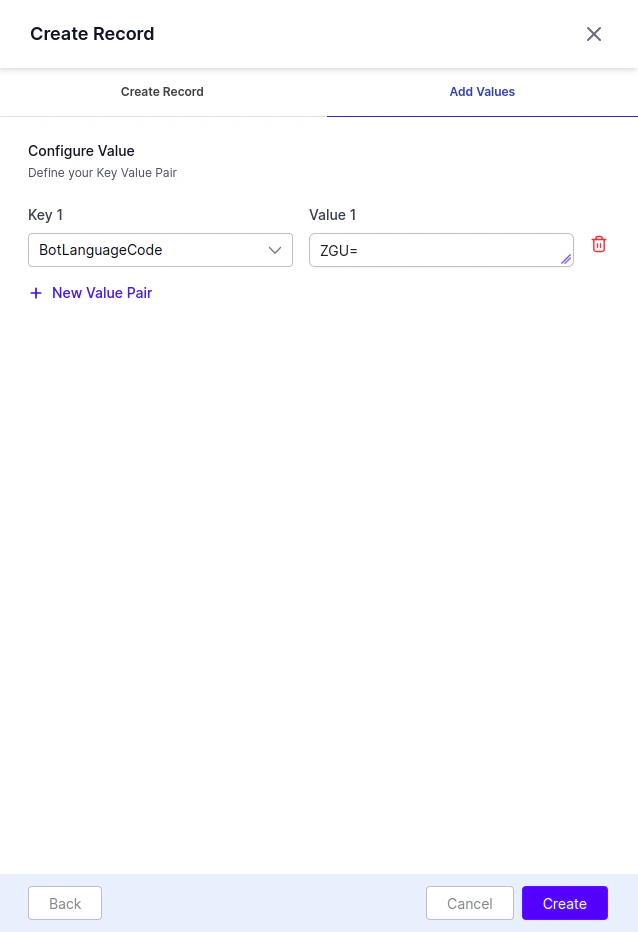
The values must be ‘Base64’ encoded.
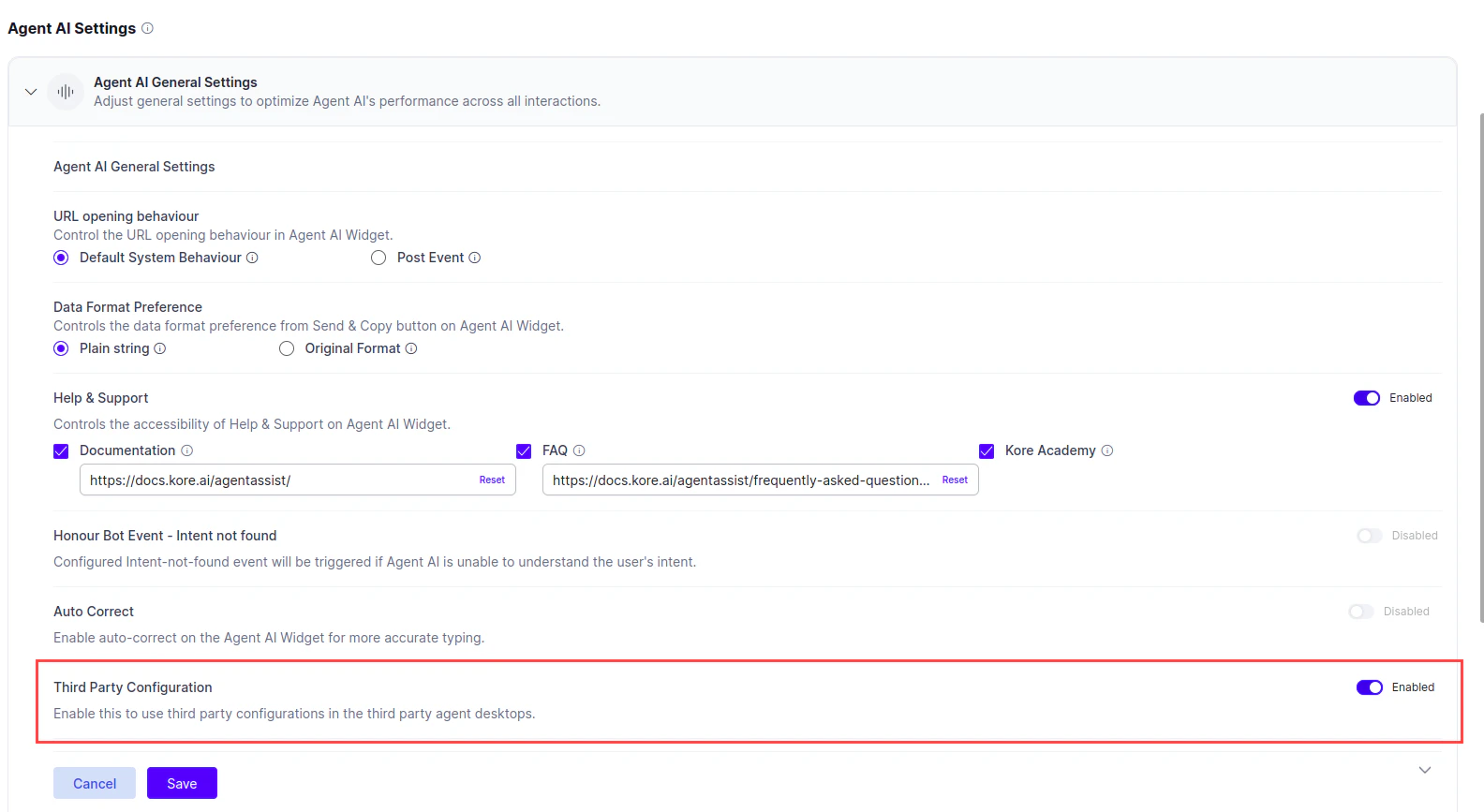
You must turn on the Third-Party Configuration setting in Agent AI > Configurations > Widget Settings > Agent AI Settings > Agent AI General Settings.
Create Connector
- Sign in to Five9 Administrator Console.
-
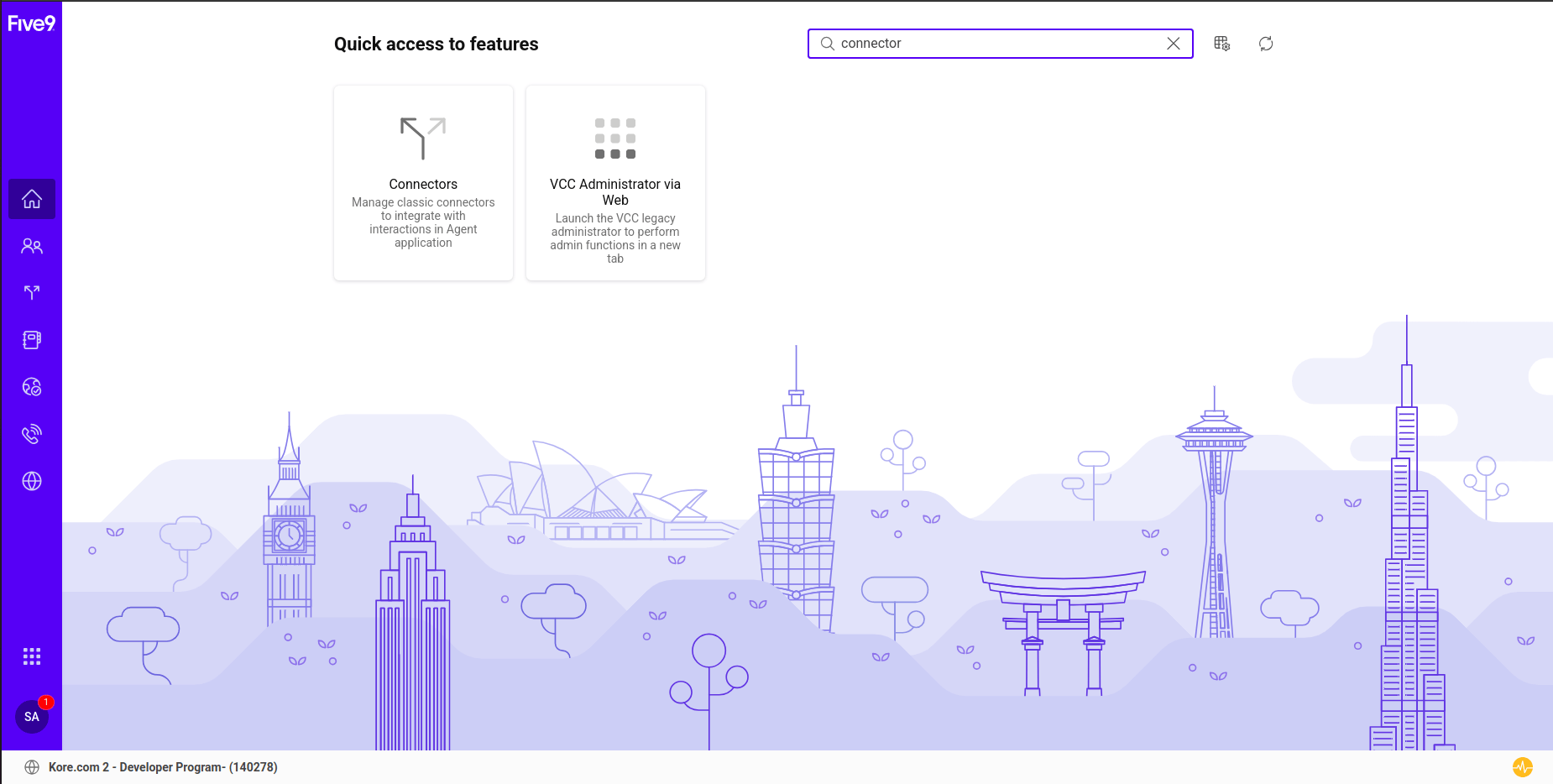
Search for connectors in the search bar, and select Connectors.
- Select Create.
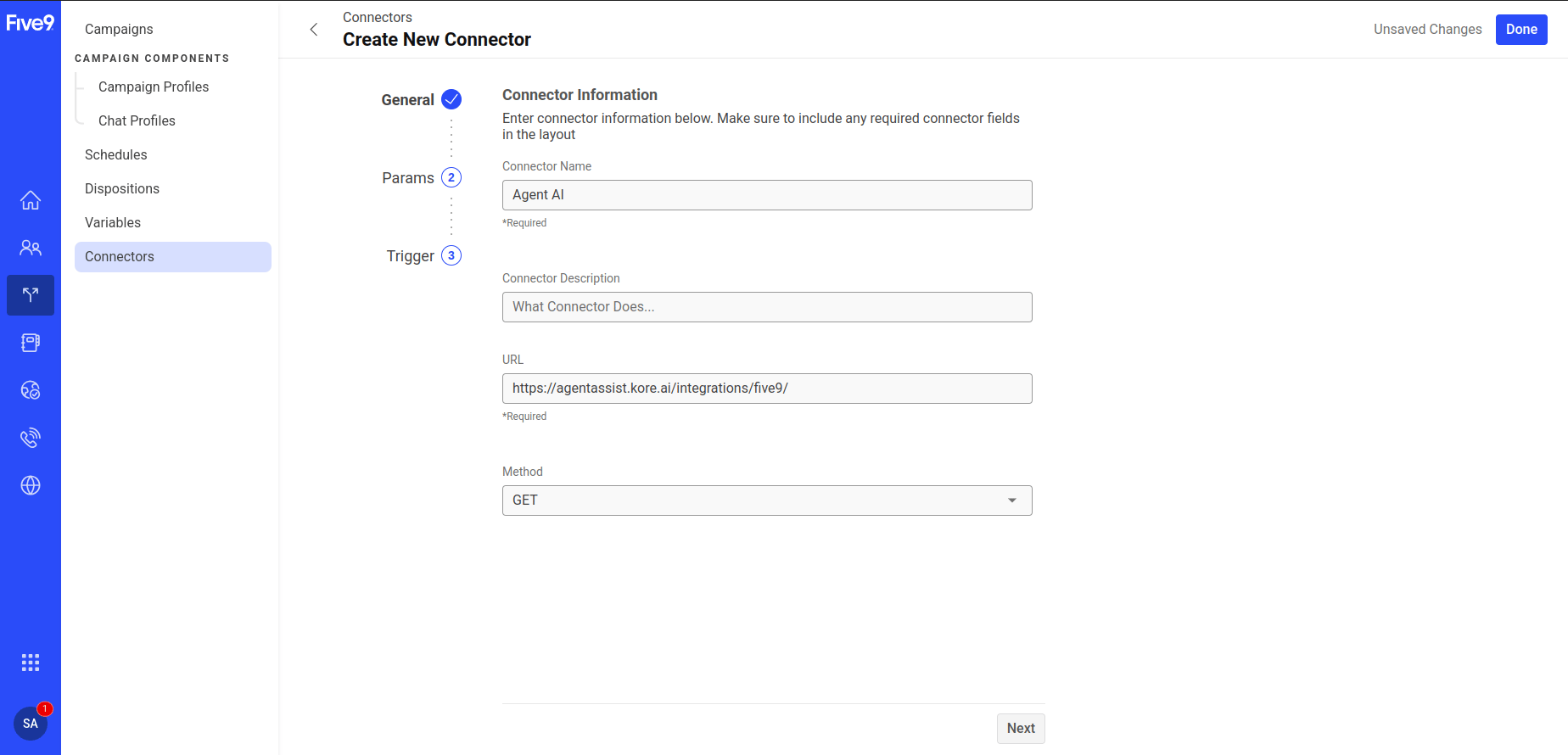
- Provide a name in the Connector Name field.
-
The URL must be
{Agent AI URL}/integrations/five9/ -
The method must be GET.
- Select Next.
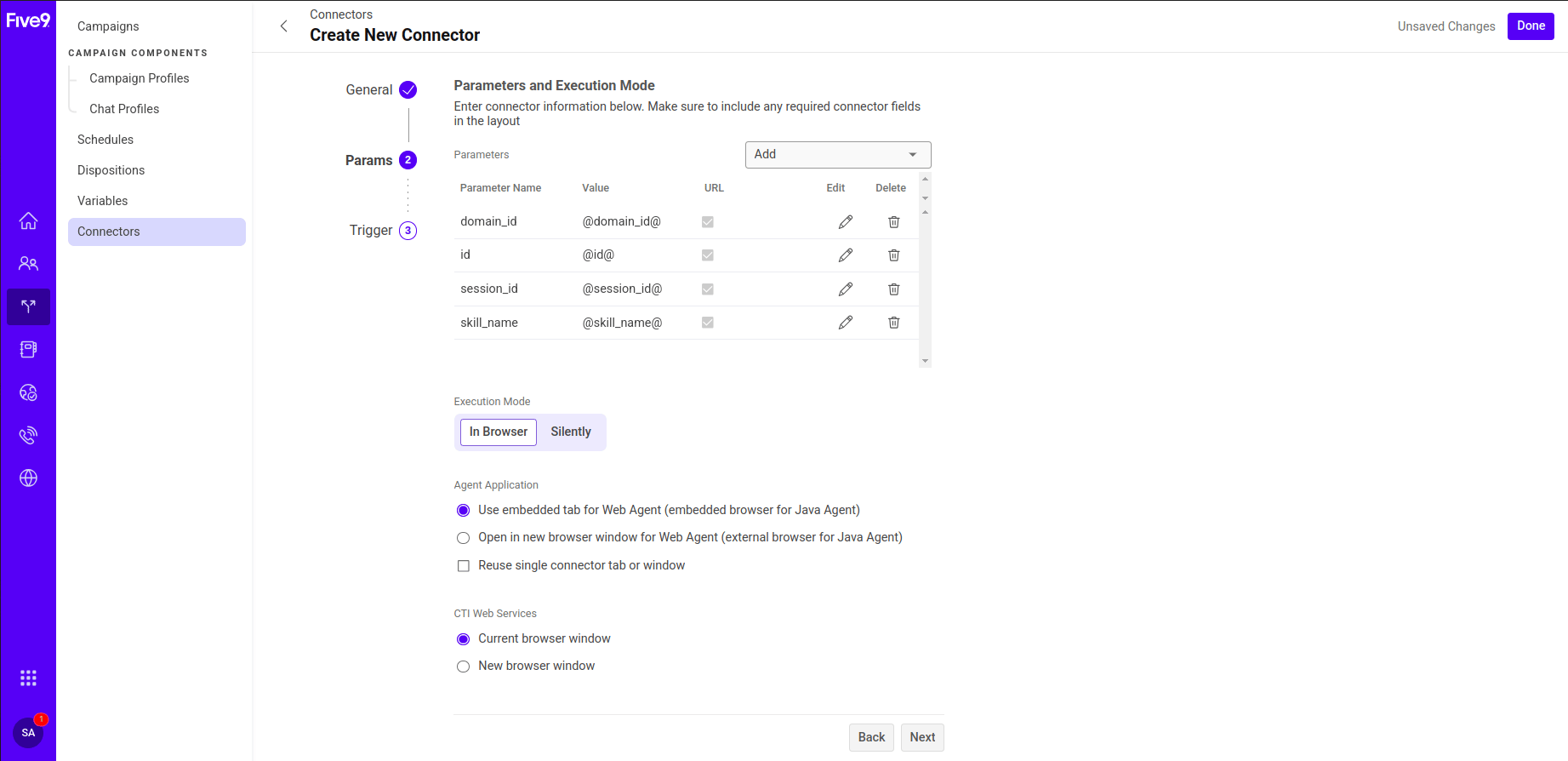
- Select Field from the Add dropdown list in the Parameters section.
-
Select session_id, domain_id, id, skill_name/campaign_name (choose either skill_name or campaign_name, depending on which you use to map the bot in Agent AI), and select Ok.\
-
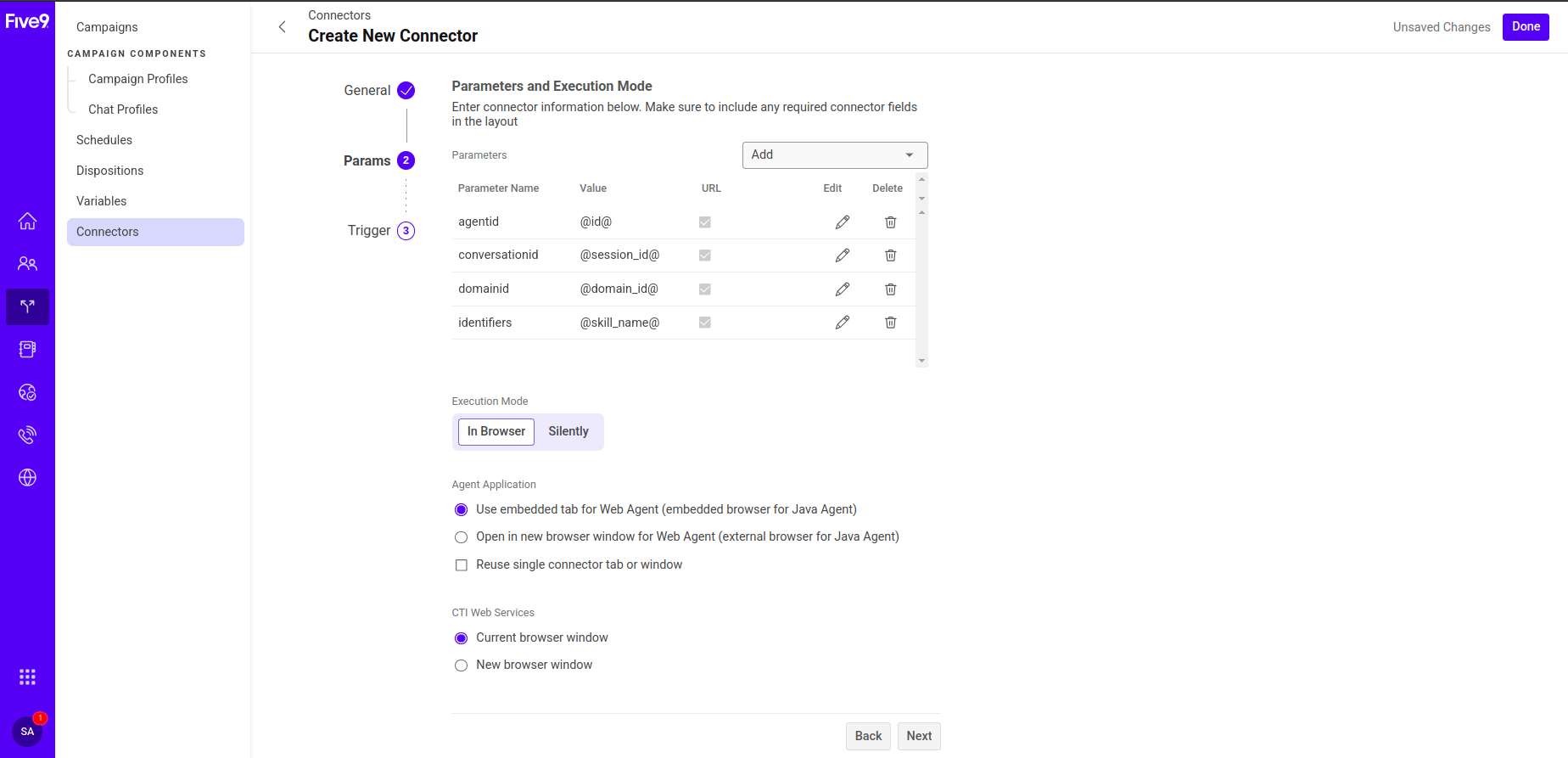
Select the Edit icon next to each parameter and update the values as follows:
- domain_id -> Domain ID
- id -> Agent ID
- session_id -> conversationid
- skill_name/campaign_name -> identifiers
-
Select Constant from the Add dropdown list in the Parameters section.
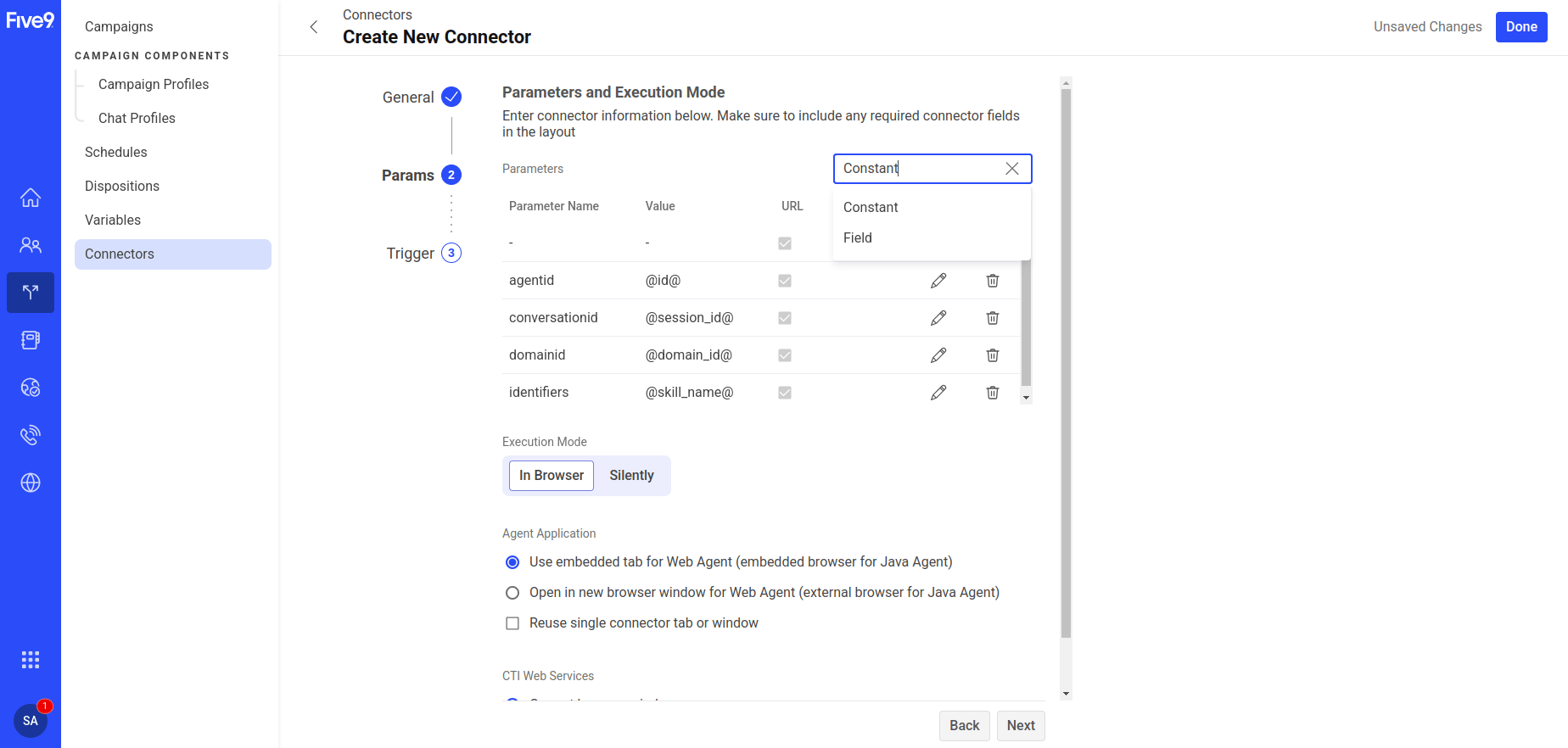
- Enter ‘accountid’ in the Name field and the accountid of your Agent AI account in the Value field. To find this ID, go to Agent AI > Flows & Channels > Channels > Digital > Web/Mobile Client > JWT App Details. For more details, see this doc.
- Select Ok > Next.
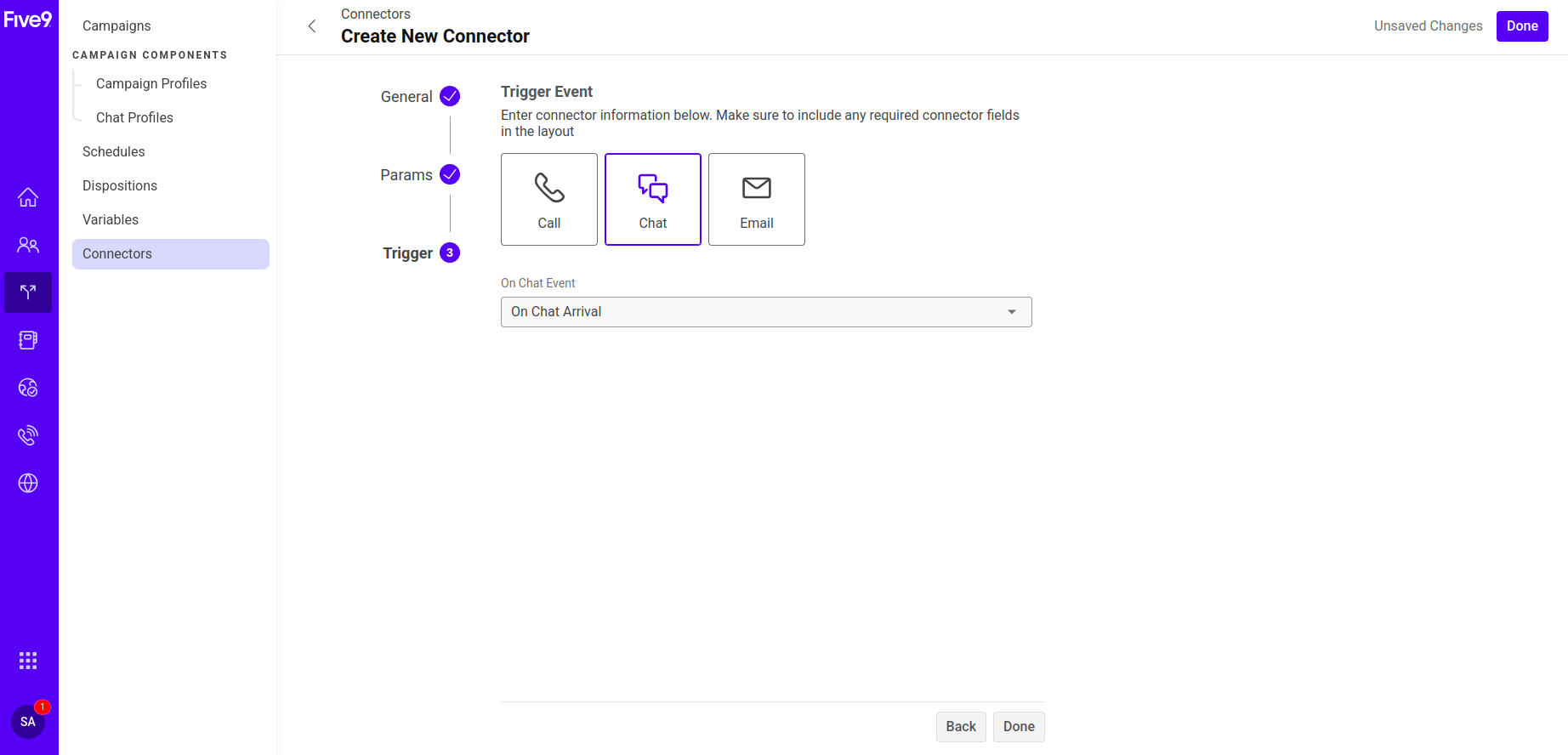
- The default selection for Trigger Event is Call and for On Call Event is On Call Accepted.
- Select Chat for Trigger Event — the On Chat Event field defaults to On Chat Arrival.
-
Select Done.
Five9 Account Setup for Incoming Chat Requests
- Create a skill and add agents with an active Chat/SMS channel. For more details, see this doc.
- Create a chat profile by following this doc.
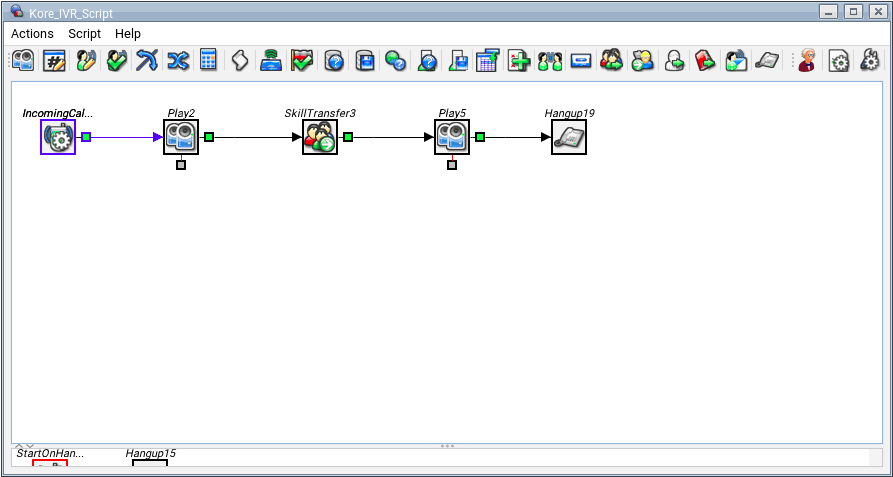
- Create an IVR script by following this doc.
Create Inbound Campaign
- Sign in to Five9 Admin Console.
-
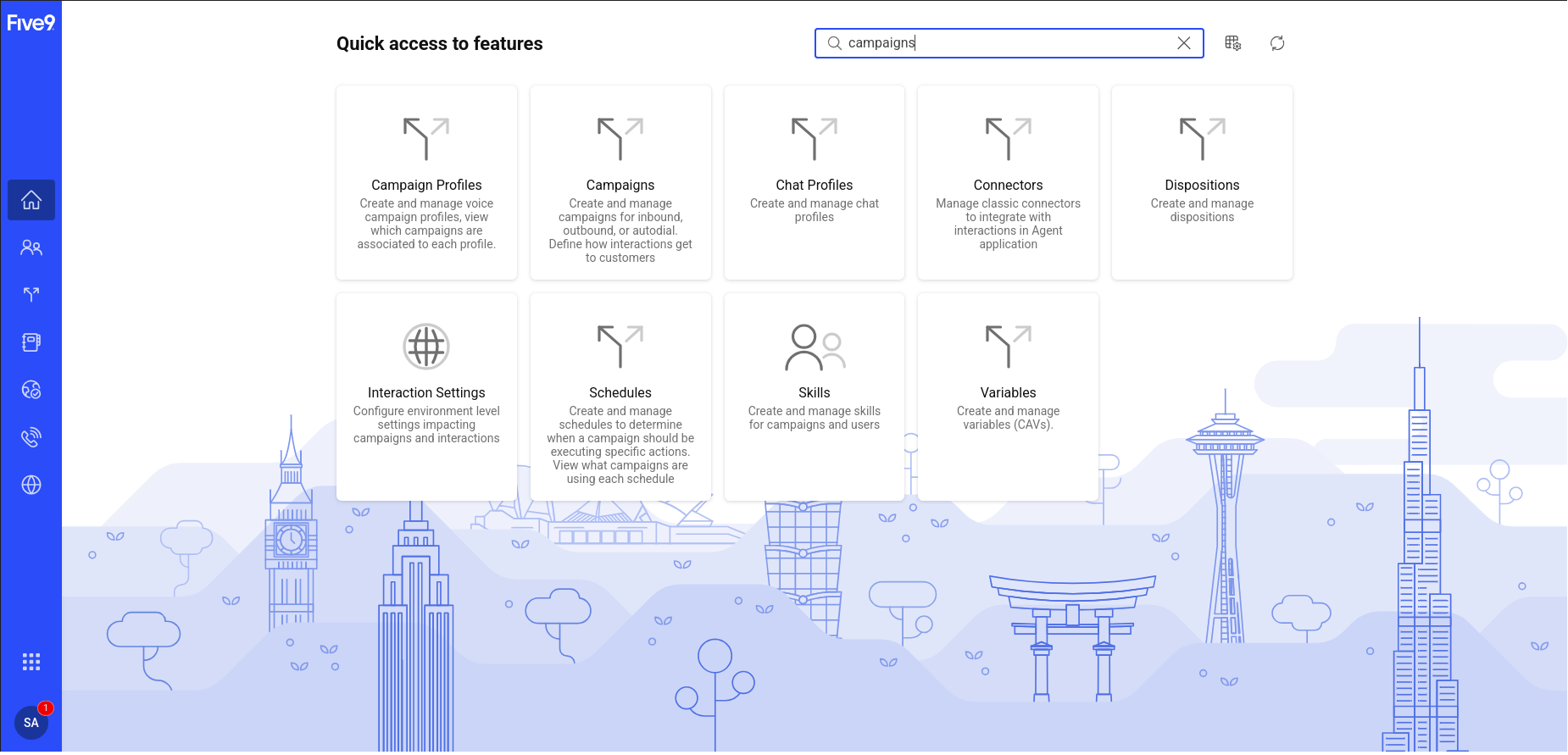
Search for campaigns, and select Campaigns.
- Select Create.
- Select Inbound > Continue.
-
Enter the following details:
- Enter a campaign name.
- Enter a campaign description.
-
Select Chat Profile, then select the chat profile from the previous step or SystemDefault.
You must have the necessary permissions to view campaign profiles. If you don’t, an error message displays.
- Voice Lines: Enter the number of lines to dedicate to voice traffic. This value sets the maximum number of phone lines or ports to support the calls for this campaign.
- Text Interactions: Enter the number of lines to dedicate to text interactions. This setting runs IVR scripts for chat or email campaigns, and determines how many IVR sessions can run the IVR script concurrently. For example, if 10 customers are in a chat campaign and you set the number of text channels to 5, only 5 customer interactions use the IVR script. The remaining 5 route to the chat campaign’s default skill without any scripting logic.
- Enter the usage threshold percentage value. This value sets the maximum percentage of lines in use. When usage reaches the threshold, the system sends a notification.
- Enter email addresses for threshold notifications. Use semicolons to delimit a list.
- Enter the number of lines to dedicate to Visual IVR (VIVR) sessions. This setting runs an IVR script using a web browser URL, but instead of TTS prompts playing audio (as in a voice call), it displays the actual TTS text. A voice caller and a VIVR caller get the same IVR flow and experience — one uses voice and the other uses a browser screen for online viewing. For more information about VIVR, see the Interactive Voice Response (IVR) admin guide.
- Select Next.
- Leave the Numbers section empty, and select Next.
- Select Default Script, and select the default IVR script or the IVR script from the previous step.
-
Select Next.
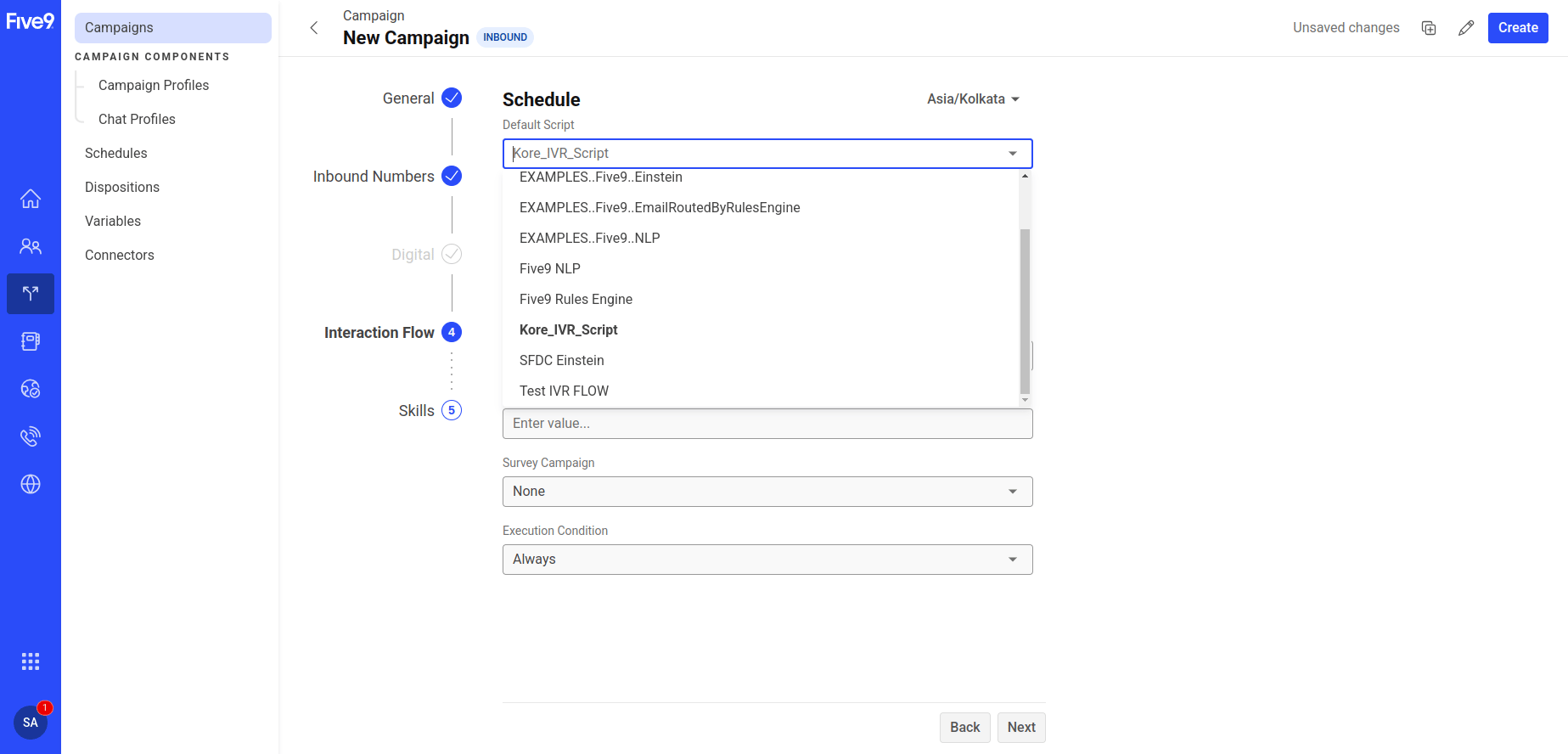
- Select Digital Skill, and select the skill from the previous step or Default Skill.
-
Select Create.
After creating the inbound campaign, start it. Refer to the Manage Campaigns doc for help.
Chat Simulation
- Open Script Generator.
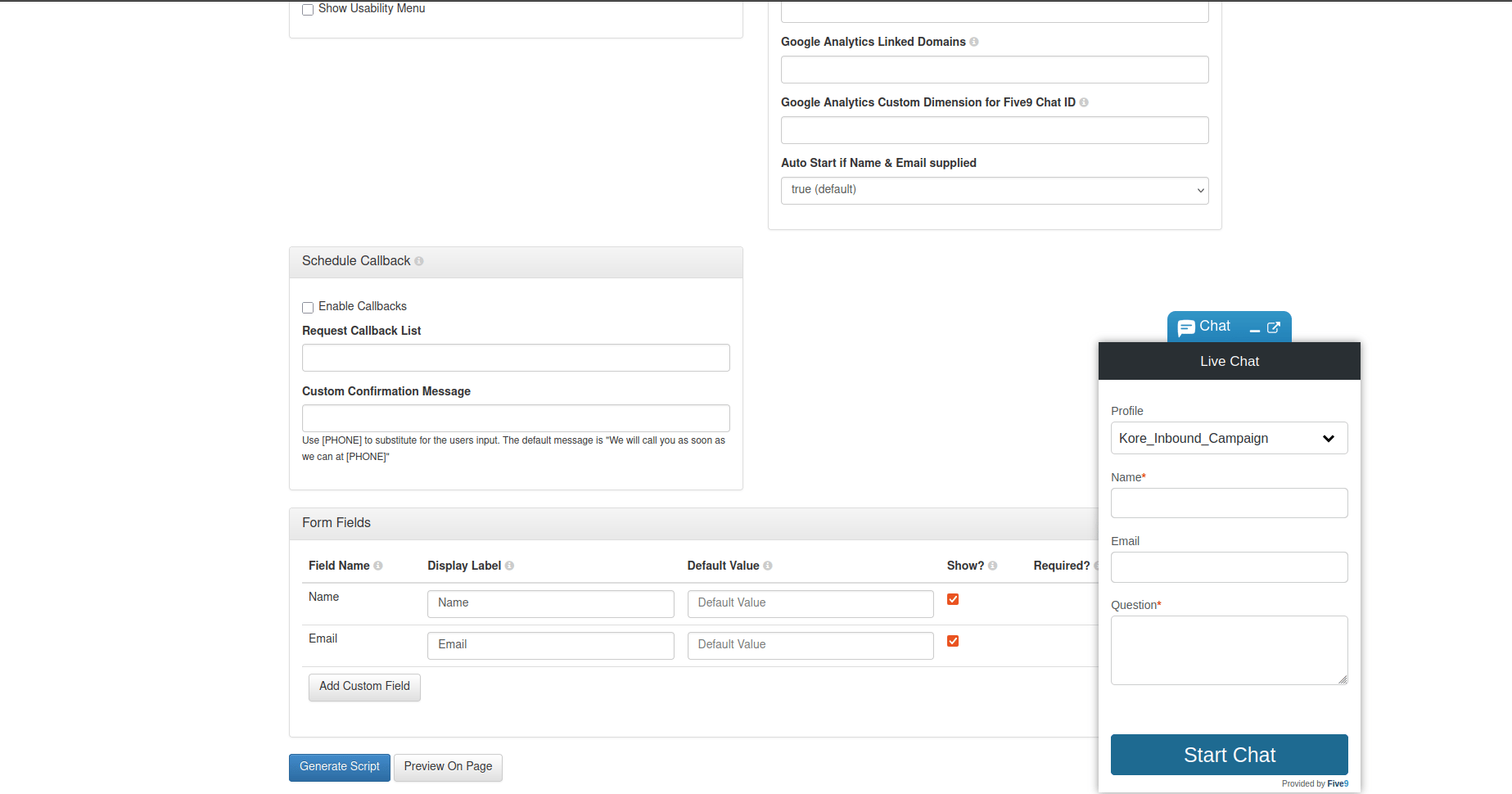
- Enter your Five9 account domain name in the Domain field and the chat inbound campaign name in the Profiles field.
- Scroll down and select Preview on Page.
- Enter values in the Name and Question fields.
-
Select Start Chat.
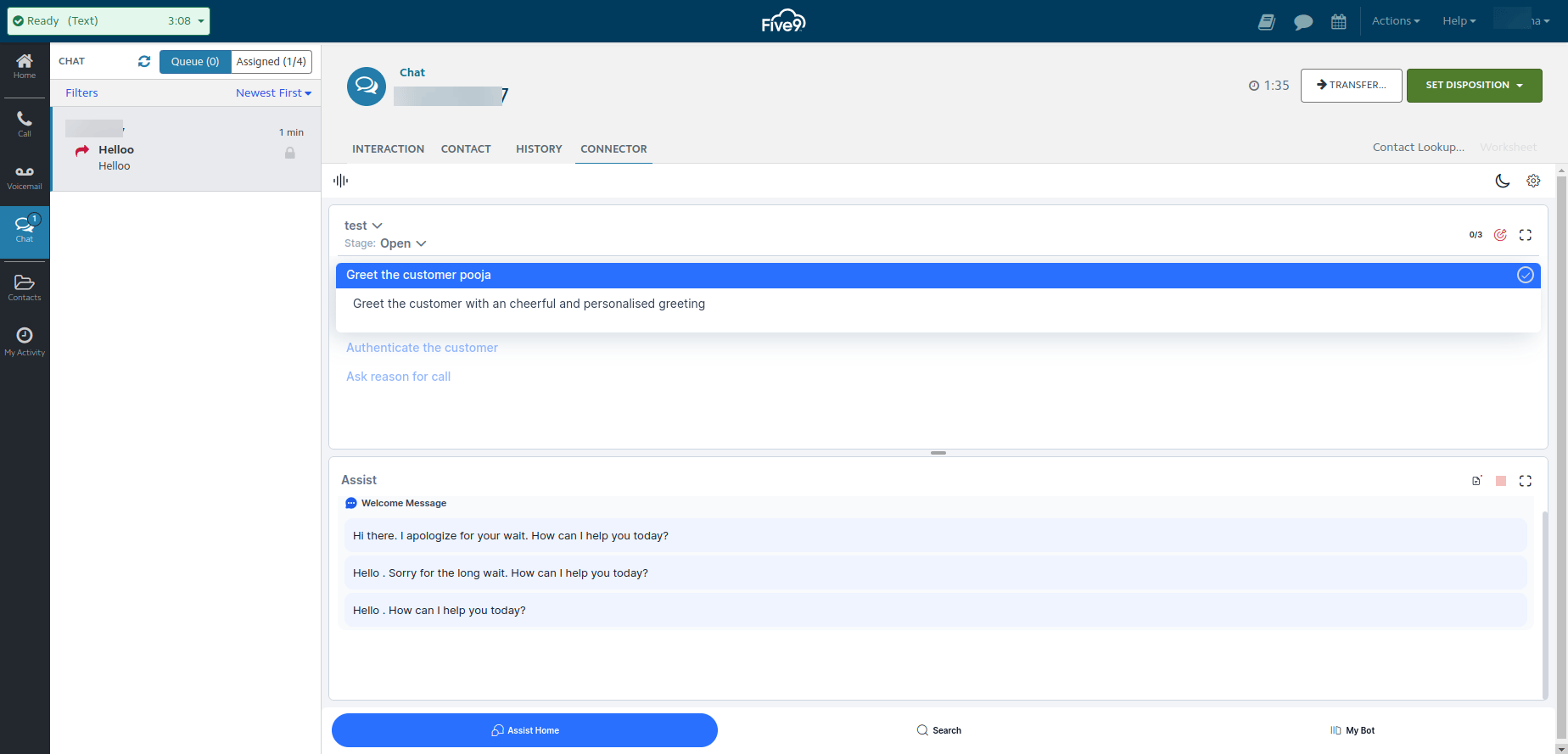
- Open the Five9 Agent Desktop, and change the status to Ready (Text).
- Select the lock icon to accept the interaction.
-
Once you accept the interaction, the connector opens by default where the Agent AI widget renders.
- Select send to send a message to the customer.
- Select copy to copy the message to the clipboard.
-
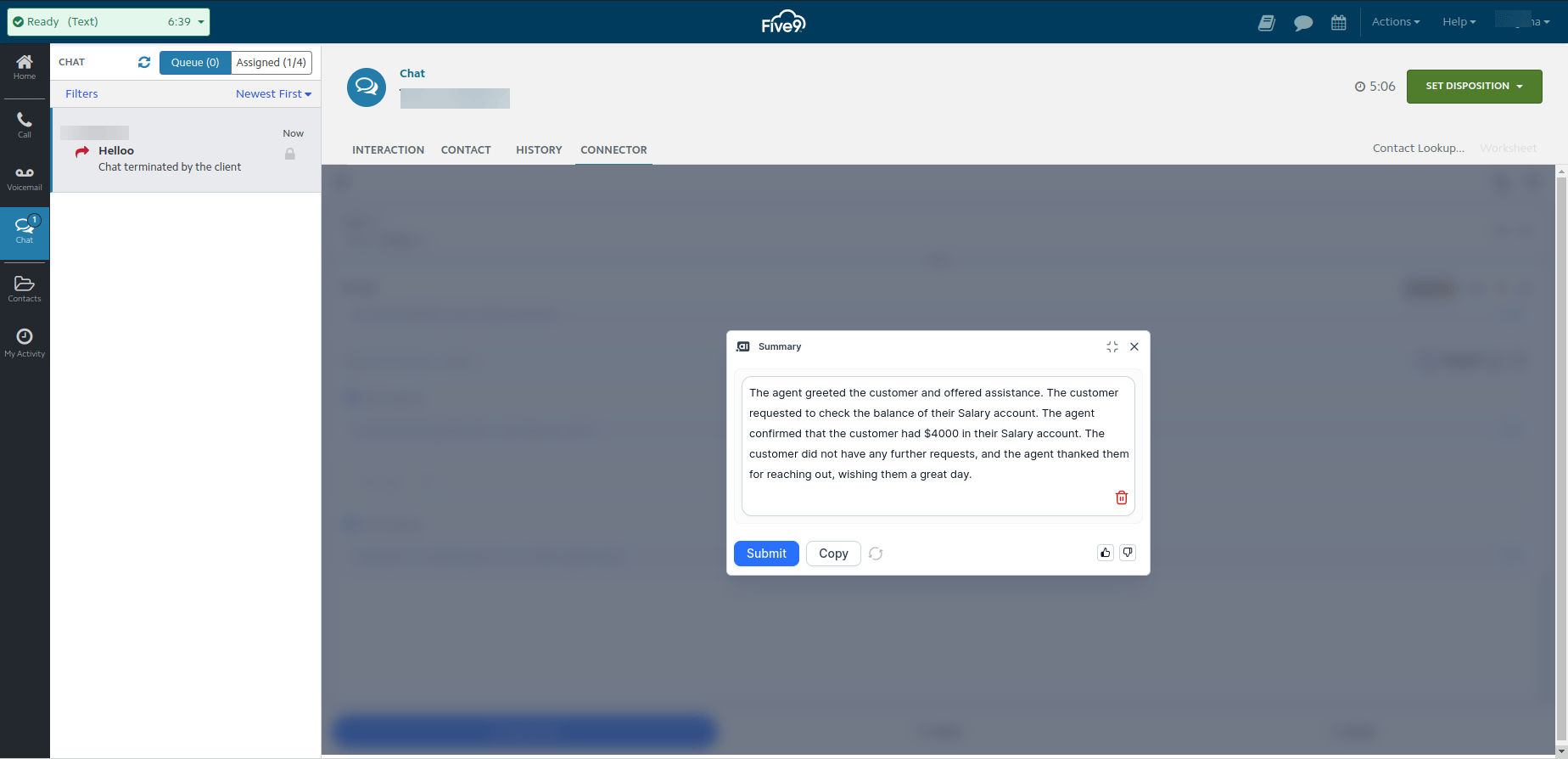
When the agent or customer ends the chat, the chat summary displays in the Agent AI widget.
Integration Limitations
- The system doesn’t support custom data and secure custom data.
- The system doesn’t support internal transfers as the widget doesn’t render for other agents joining the conversation, as the Five9 connector isn’t available for other agents.
- Concurrent Chats Limitation: Agent AI widget receives customer messages or summary events for a chat only when that chat window is active. If the agent switches to a different chat, the widget doesn’t process new messages or events from the previous chat.