Turn on the Landing Summary toggle, configure how the system generates an Intermittent and End of Conversation summary, auto-generate the transferring agent’s exit summary when a cold or warm transfer occurs during a conversation, and select a summary generation model. Agents can copy the summary into the Notes or Remark field when closing the conversation.
| Option | Description |
|---|
| Generate full conversation summary (bot + all agents) | Summary of bot-user and agent-user conversations. |
| Generate agent’s conversation summary only | Summary of only the agent-user conversation. |
| Show Submit button | Controls the visibility of the Submit button. |
| Max no. of summaries | Sets the maximum number of intermittent summaries an agent can generate. |
-
Sign in to Platform > Agent AI.
-
Go to Configurations > Summary Settings.
-
Select a channel — Chat, Voice, or Email.
-
Select a language from the Language list.
-
Turn on the Landing Summary toggle.
-
Turn on the Intermittent Summary toggle.
- Select Generate full conversation summary (All agents) or Generate current agent’s conversation summary only.
- Select Show Submit.
- Set how many times an agent can generate intermittent summaries in the Max no. of summaries field.
-
Turn on the End of Conversation Summary toggle.
-
Select Generate full conversation summary (Bot + all agents) or Generate agent’s conversation summary only.
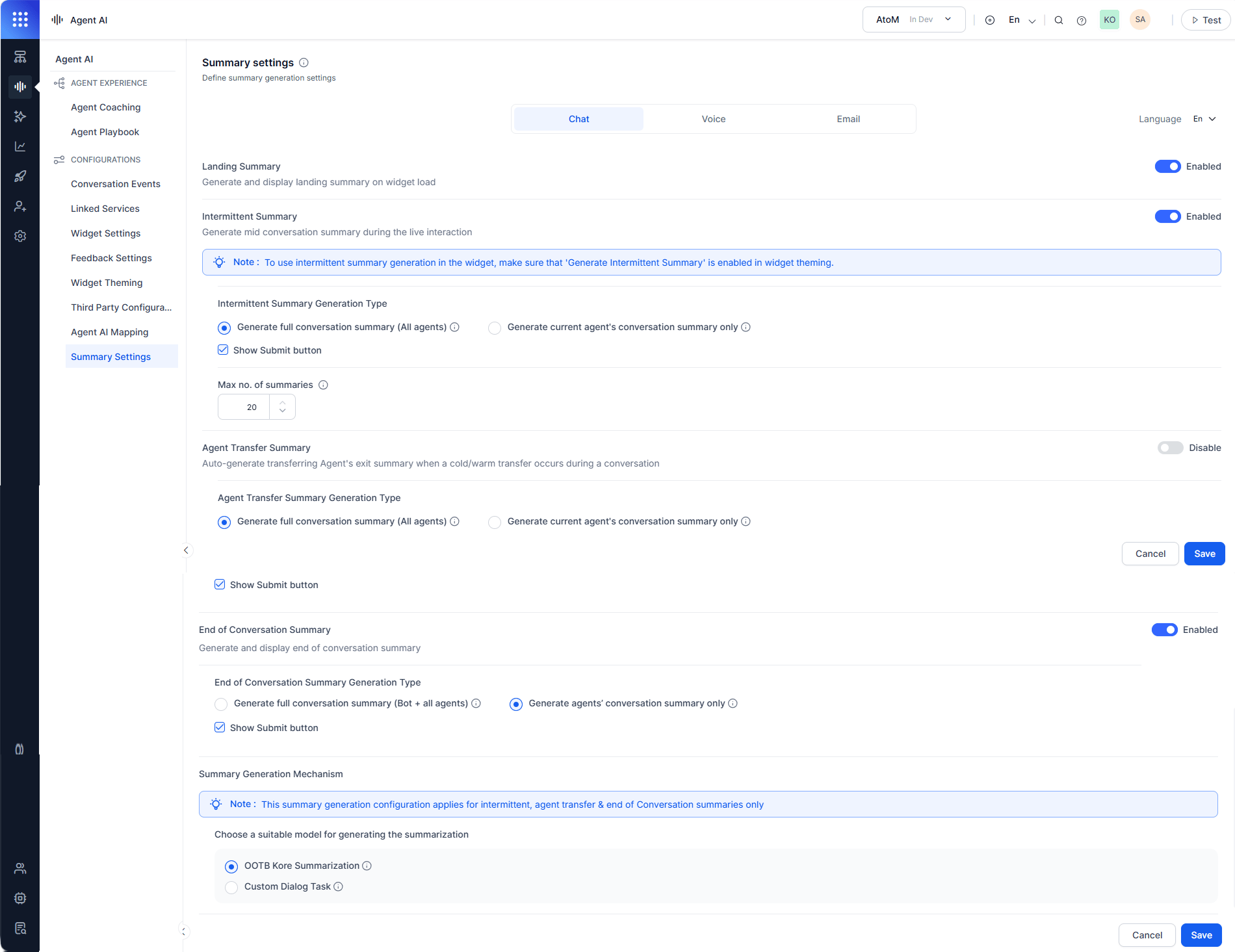
Select to generate conversation summaries of all participating agents or only the current transferring agent during warm or cold transfers.
| Option | Description |
|---|
| Generate full conversation summary (All agents) | Conversation summary of all participating agents before a warm or cold transfer to a new agent. |
| Generate current agent’s conversation summary only | Summary of only the current agent’s conversation before the transfer. |
| Show Submit button | Controls the visibility of the Submit button. |
Summary Generation Mechanism
Select how to generate the conversation summary:
| Option | Description |
|---|
| OOTB Kore Summarization | Default auto-summarization using the built-in model. |
| Custom Dialog Task | Use a custom dialog task for summarization. Displays dialog tasks or child apps based on app selection. |
The Summary Generation Mechanism applies to Intermittent and End of Conversation Summaries only.
-
Select OOTB Kore Summarization or Custom Dialog Task.
- If you select Custom Dialog Task and the Configure End of Conversation Dialog Task is on, a Confirm Action window appears.
- Select Yes, Proceed.
- Select a dialog task from the Select Dialog list.
-
Select Save.
To use the Custom Dialog Task, you must turn off
Configure End of Conversation Dialog Task in
Conversation Events.

